What to expect
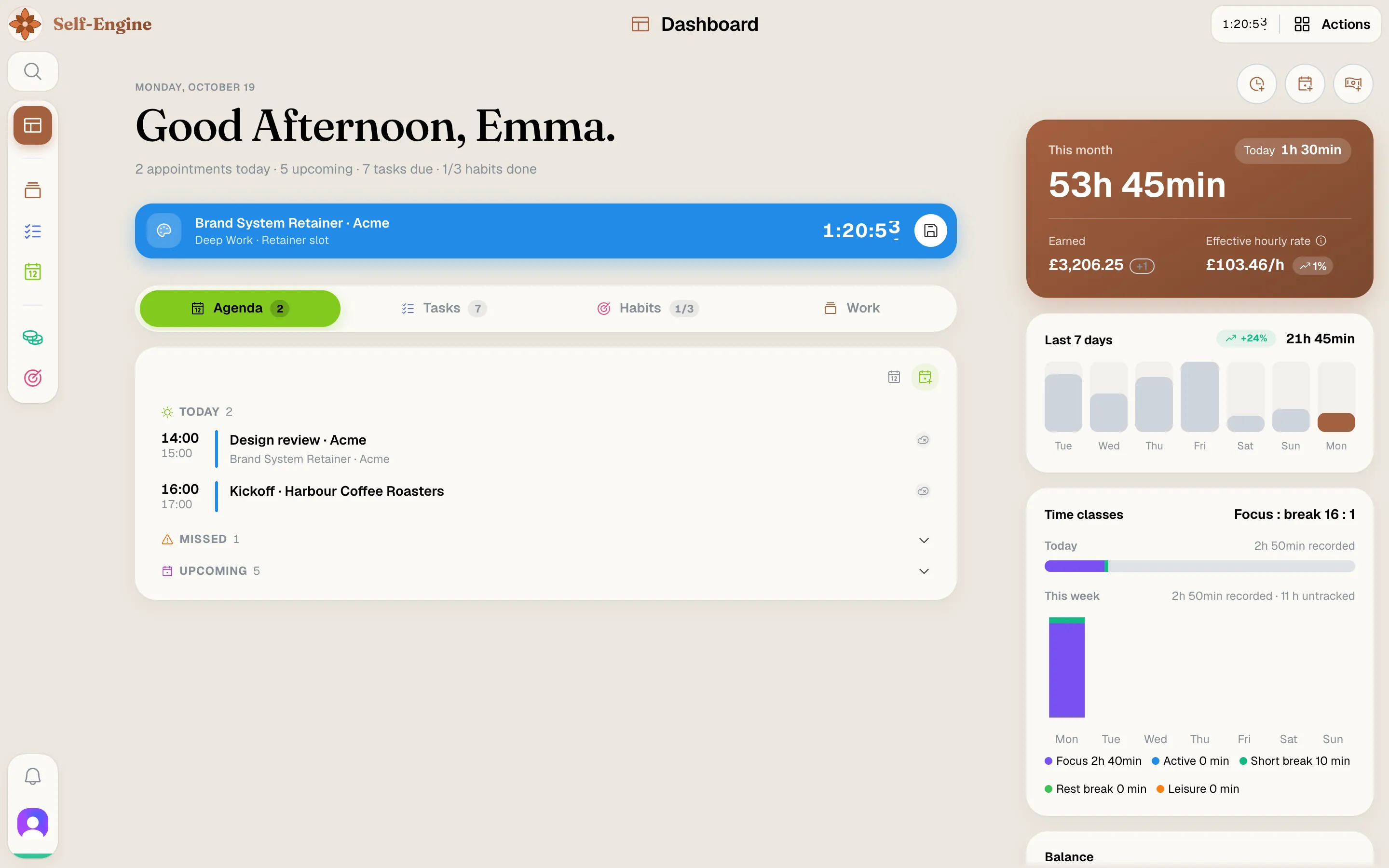
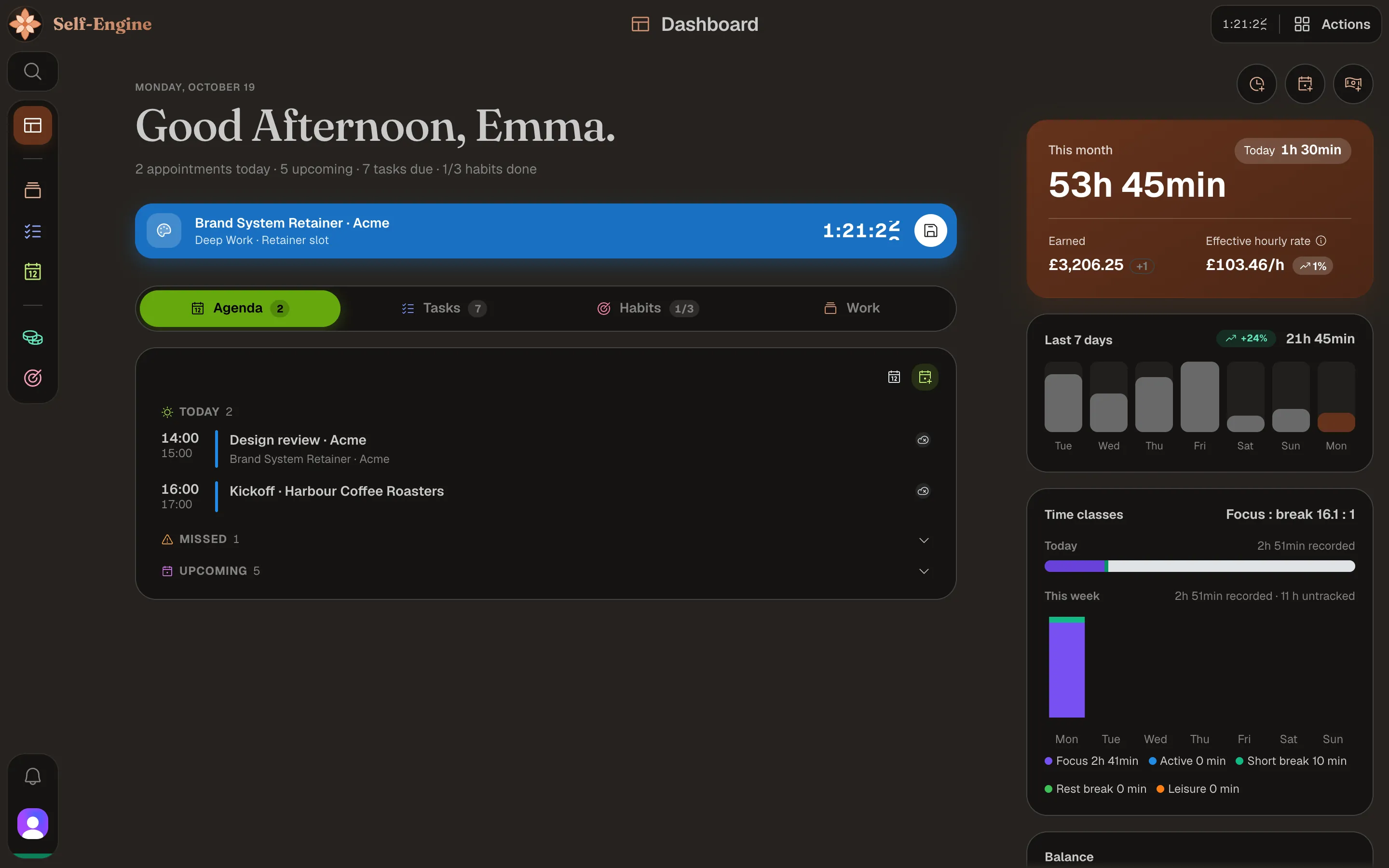
Self-Engine brings five modules together in one app. They share your data, work offline and sync across your devices. You don't have to use them all at once: start with whatever helps you most right now.
Projects
Organize projects in folders and track working time with a timer or Pomodoro.
Tasks
Collect to-dos in the inbox, plan them onto days and work through them.
Calendar
Plan appointments and see planned and tracked time side by side.
Finance
Keep track of income, expenses, recurring transactions and bank accounts.
Habits
Build habits, check them off every day and follow your streaks.
Create your account
Before you begin, you create an account, accept the terms and choose your access. It only takes a few minutes.
Sign up
On the homepage, click “Sign up” and register with one of the sign-in methods on offer. If you already have an account, just sign in.
Accept the terms
You'll see the current Terms of Service and Privacy Policy. Selecting “Accept and continue” accepts the terms and acknowledges the Privacy Policy.
Tip If you select “Decline”, the account you just created is deleted again.
Choose your access
To use Self-Engine you need a subscription or an invite code.
- Self-Engine Pro is a monthly subscription with all five modules and no free trial. Paid sign-ups open with the beta; you'll find the prices on the homepage.
- If you were invited as a friend or tester, enter your invite code under “Friends & testers” and click “Activate free access”, no payment details required.
- If you already have valid access, setup skips this step.
Note Signing up, accepting the terms and choosing your plan need an internet connection. After that, Self-Engine also works offline.
Set up Self-Engine
Setup walks you through seven steps: Welcome, Terms, Subscription, Settings, Appearance, AI and Start. In the middle three you make Self-Engine your own. You can change all of it later in the settings.
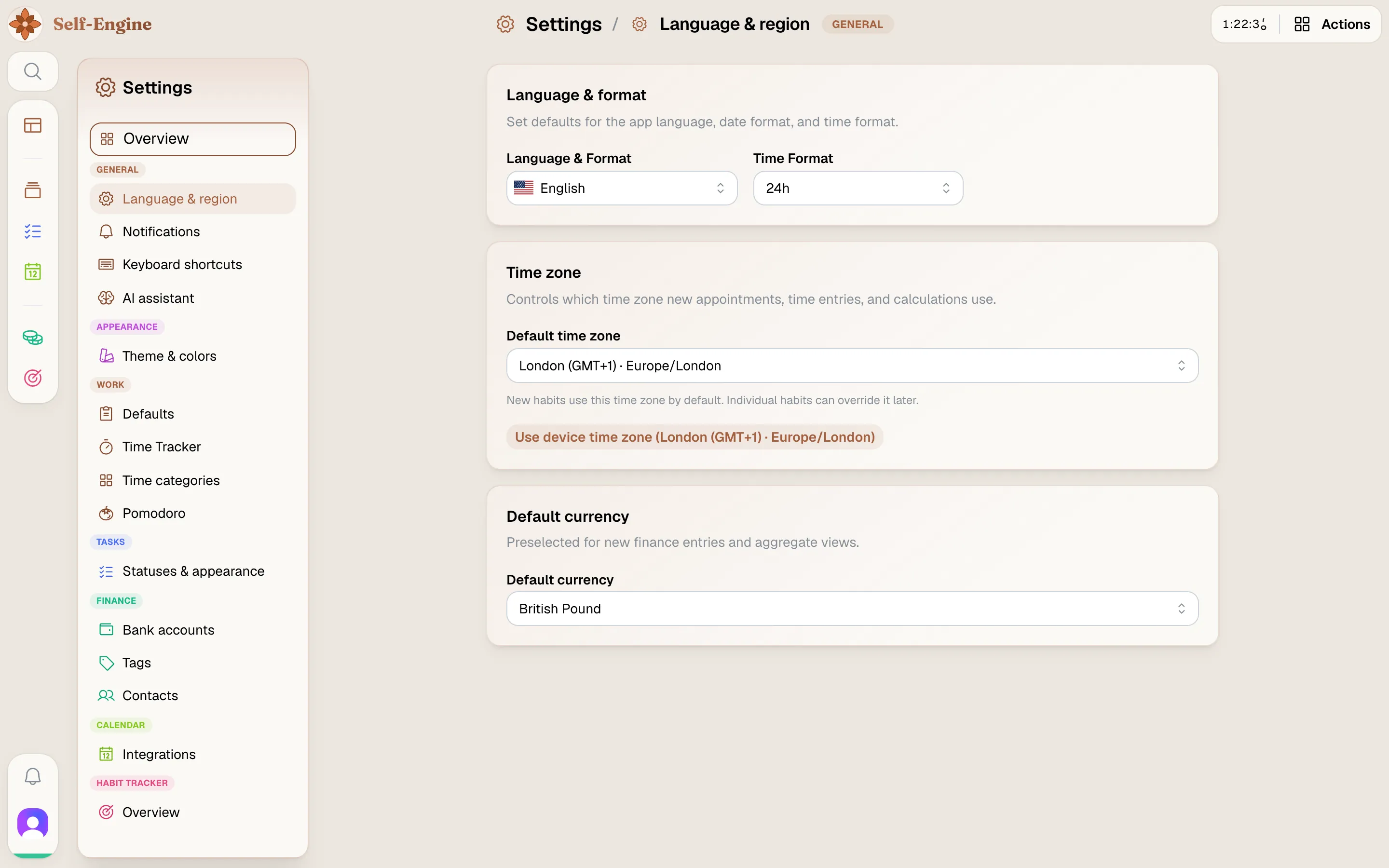
Settings
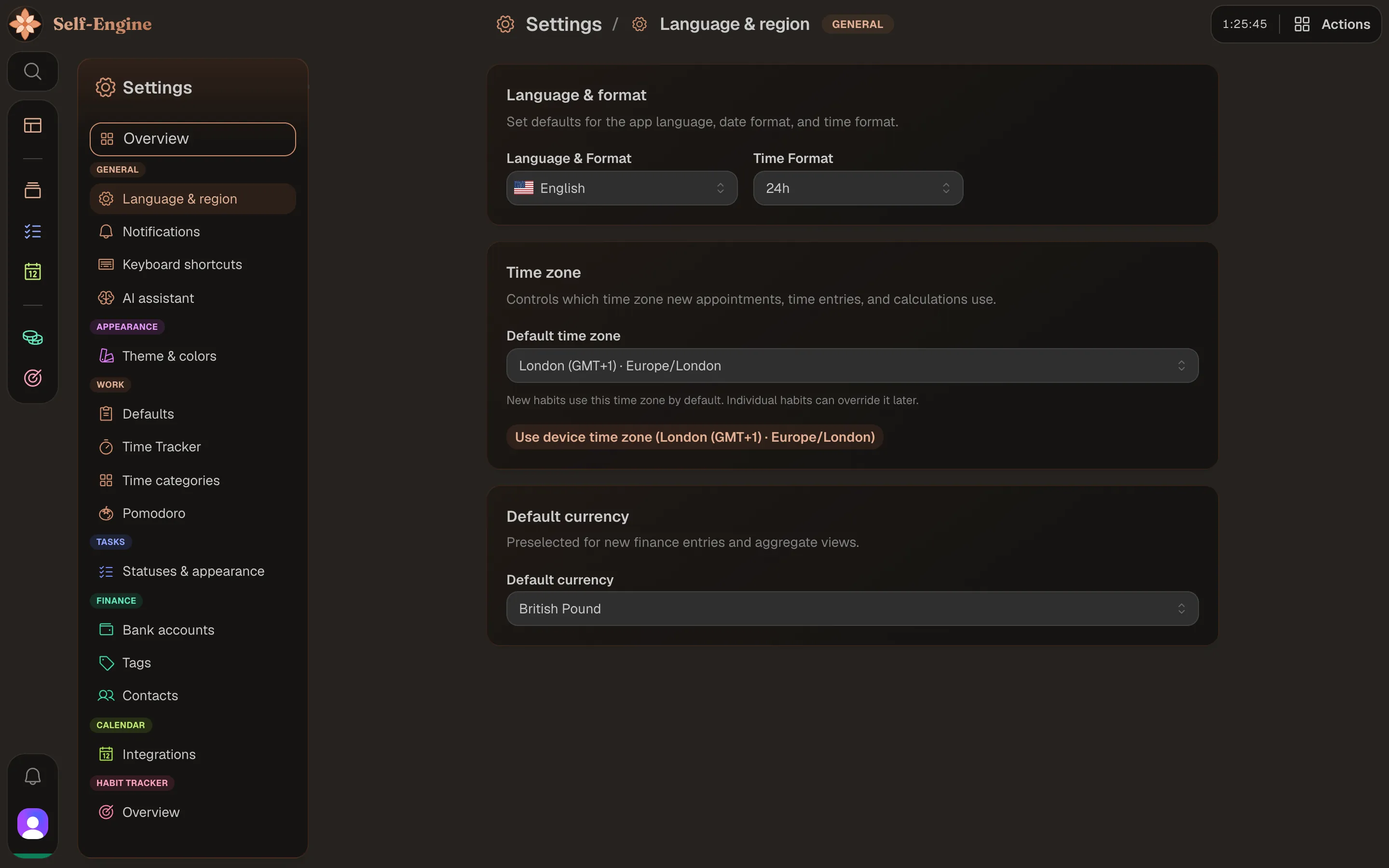
Choose your language (German or English), time format (24 or 12 hours), time zone and theme color.
Appearance
Choose the Light, Dark or System color scheme. Color mode gives each module its own accent color.
AI
Decide whether you want to use the AI assistant: “Yes, enable it” or “No, keep it disabled”. You can only continue once you've made a choice.
Tip Enabling it sends no data by itself. Only when you ask the assistant something do your message and the data it needs go to the AI model.
Tip If you interrupt setup, it picks up where you left off the next time you sign in.
Where do you want to start?
In the last step you choose where to begin. Self-Engine then opens that module directly, not the dashboard.
Track time
Opens the project overview. Create a project and start your first timer.
Track finances
Opens Finance. Set up a bank account and record your first payments.
Build habits
Opens the Habits Today view. Create your first habit.
Plan tasks
Opens the Tasks Today view. Capture what's on for today.
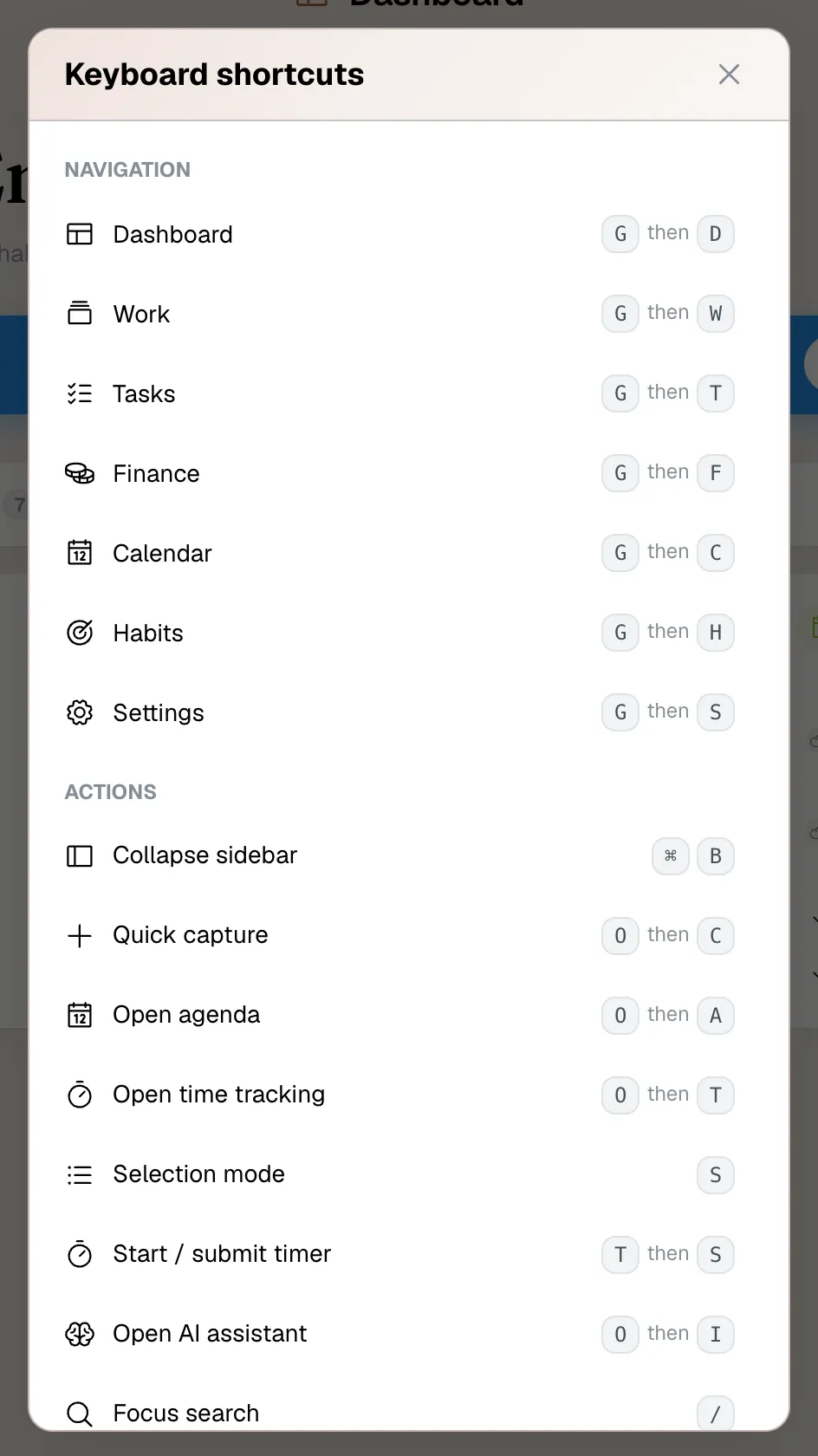
Your choice only decides where you land. You can reach every other module at any time from the app rail on the left, or with G followed by the module's first letter.
What's already prepared
To finish, Self-Engine sets up a few basics so you don't start from scratch:
- Starter tags for Finance in your language. Existing tags are left untouched.
- Starter time categories for sorting the time you track.
Note Self-Engine doesn't create projects, bank accounts, tasks or habits for you. You create those yourself, and the dashboard checklist helps. You can adjust tags and time categories in the settings.
Guided tours
The first time you open an area, a short tour shows you the key spots. There are separate tours for Dashboard, Tasks, Work, Finance, Calendar and Habits.
- Use “Next” and “Back” to move through the steps; “Let's go” ends the tour. “Skip” closes it right away.
- Which tours you've seen syncs with your account, so a tour doesn't reappear on every device.
- Tours run in the web app and the Mac app when the window is large enough, not on narrow screens.
Restart a tour
Click your profile picture, choose “Help” → “Restart tour”, then pick the area whose tour you want to see.
The dashboard checklist
The dashboard has a “Getting started” checklist. Open it from the app rail or with G then D. Each item takes you straight to the right place and ticks itself off once you've done it:
- “Create a project” opens the project overview.
- “Start your first timer” opens time tracking. It counts as done as soon as a timer is running or you have a time entry.
- “Set up a bank account” opens the bank account settings.
- “Create your first habit” opens the Habits Today view.
- “Create your first task” opens the Tasks inbox.
Once every item is done, the checklist disappears. If you don't need it, hide it with “Dismiss checklist”.
Help when you need it
Self-Engine doesn't leave you on your own:
- Profile picture → “Help” → “Help & Guides” opens these guides in a new tab.
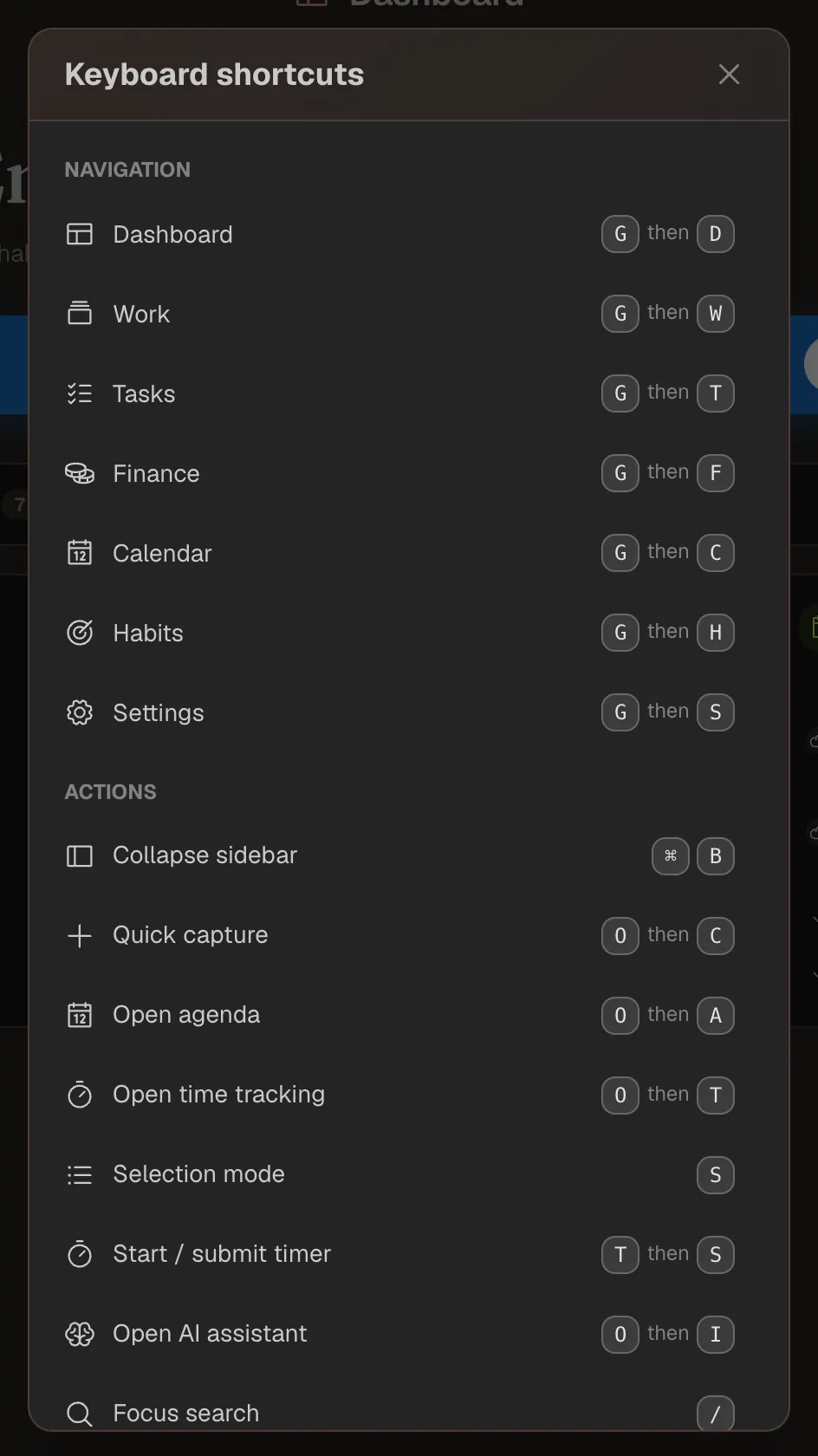
- ? shows every keyboard shortcut; ⌘ / Ctrl + K opens the command palette, where you can find any command by searching.
- If you've enabled the AI assistant, it answers how-to questions right in the app. It needs an internet connection. See the AI assistant guide for more.
- Profile picture → “Send feedback” sends us questions, bugs or wishes.
Where to go next
Depending on where you started, these guides take you further:
- Your first project: create a project and track your first time.
- Finance setup: bank accounts, tags and your first transactions.
- Tasks: capture, plan and get things done.
- Habits: set goals, check them off and follow your progress.
- Devices, offline & sync: the Mac app and what works without internet.
- Account, subscription & data: settings, export and deleting your account.
- Keyboard shortcuts & command palette: work faster from the keyboard.