How to use these tips
Each section describes a routine you can set up in Self-Engine right away. Pick one, try it for a week and keep what helps.
Note Self-Engine measures what you record: booked time, time classes, payments and entries. How much focus time or how many Pomodoros are right for you is up to you – the app sets no targets for that.
Capture first, sort later
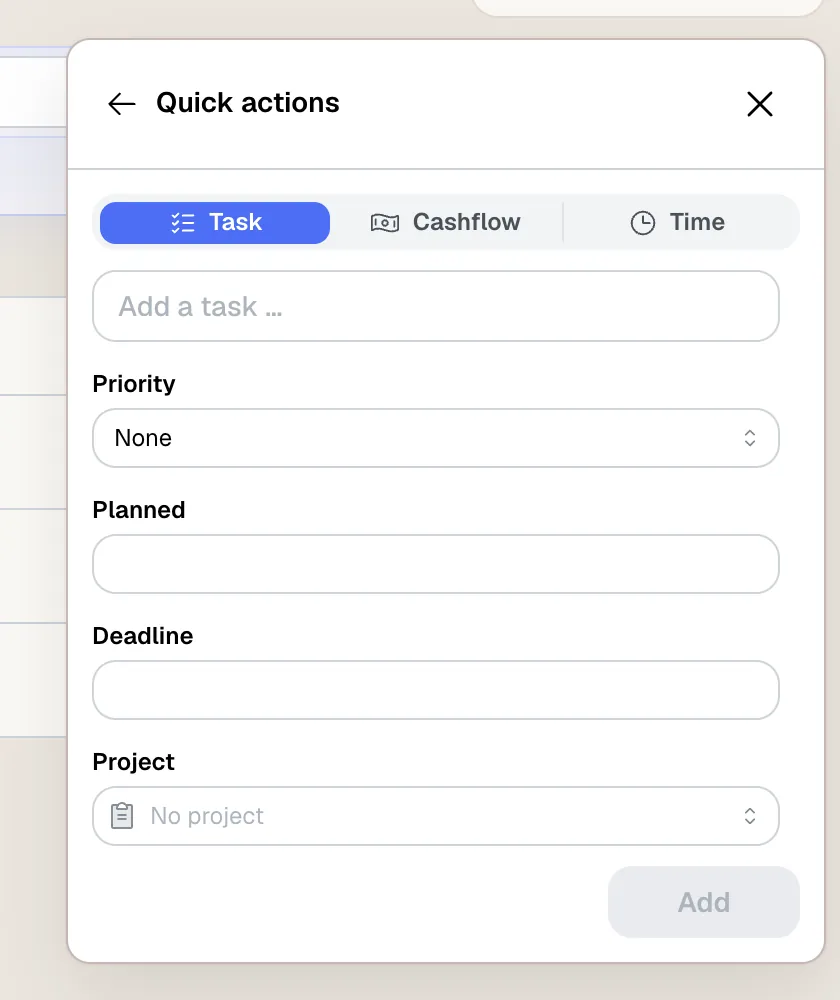
A thought you don't write down right away keeps costing attention. “Quick capture” lets you note it in seconds, wherever you are in the app.
Open Quick capture
Click the plus in the header or press O, then C.
Enter and continue
Choose Task, Cashflow or Time, type a title and save. The form stays open so you can type the next entry straight away.
Clear the inbox
Open Tasks → Inbox, open each task and give it a working status, a project and a date if needed. Only with a working status does it appear under “Open” and in its project's task list.
Tip A fixed time for the inbox, such as every morning, keeps it from piling up.
Plan your day
Plan less but realistically, and keep what you intend to do apart from what is actually due.
- Set “Planned” to the day you want to work on a task, and use “Deadline” only for real cutoffs. Whatever was planned for yesterday and slipped stays under “Today”; a task only becomes overdue through its deadline.
- Break big tasks into subtasks and give the next step its own date. Dated subtasks show up under “Today” on their own, with a link back to their parent.
- In the calendar's day or week view, drag a project from the “Planning” sidebar into a free slot. This creates a one-hour appointment for the project that you can resize as needed.
- Protect focus time with a “Blocked” entry. Nothing can be dragged into blocked time, and you get a warning if you save an appointment that overlaps it.
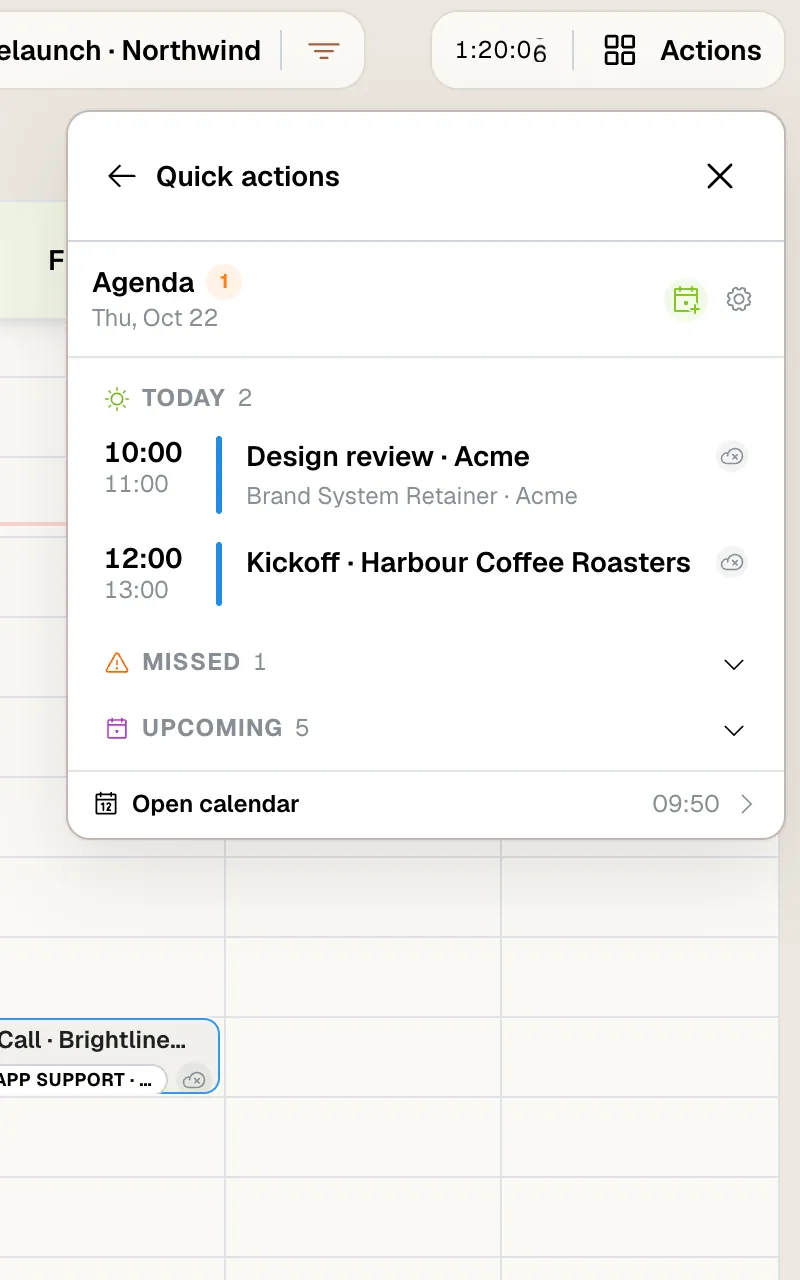
- Press O, then A to open the agenda at any time: what is running now, what's still coming today and which appointments you missed.
Note Tasks don't appear as blocks in the calendar, even when they have a date. To reserve time for a task, create an appointment for its project.
From plan to tracked time
An appointment is your plan; a time entry is the record of what actually happened. Connect the two and the calendar shows you where plan and reality differ.
Assign the appointment to a project
Open the appointment in the calendar and choose “Assign project” if it has none yet. Appointments you dragged in from Planning already have their project.
Start the timer from the appointment
From 60 minutes before it begins, the appointment offers “Start now”; with “Choose timer start” you start from the planned beginning instead. If a timer for the project is already running, connect it with “Link running timer”.
Submit the timer
Finish with “Save timer” in the cockpit or “Stop timer” on the appointment. The time entry stays linked to the appointment.
Compare plan and reality
The day and week views show planned appointments and tracked time side by side. In the project, “Appointments” lists the plans and “List” the recorded entries.
Tip If you already tracked the time, attach it to the appointment with “Assign time entries…” instead of creating a new entry from the appointment. That way nothing is counted twice.
Focused work with Pomodoro
Pomodoro gives demanding work a rhythm. To have that focus time show up as focus in your statistics later, combine it with time categories.
Choose a focus category
Give projects for concentrated work the default time category “Deep Work” (Focus time class). Alternatively, set which category focus phases get in the Pomodoro settings – Pomodoro alone doesn't turn time into focus time.
Turn on Pomodoro
Start the timer and click “Enable Pomodoro” on its card. By default, 25 minutes of focus alternate with 5-minute short breaks, and a 15-minute long break follows every four focus phases.
Record interruptions
If you have to step away, click “Pause”: the countdown stops and the time is recorded as a break. “Resume” continues with the remaining phase time.
Save
“Finish & save timer” under “Pomodoro options” stores all phases in one time entry. By default, the timer is also saved automatically after the long break.
Tip Set durations, automatic phase changes and sounds under Settings → Pomodoro. Try shorter or longer phases until the rhythm suits you.
Track your whole day
When you record breaks and free time as well as project time, the dashboard shows you how your day is really spent.
Time without a project
With “Start a timer without a project” in the cockpit, record your lunch break or evening off under a matching time category. This time is never paid or rounded.
Breaks inside a timer
“Pause” and “Resume” record a break as a phase within the same entry. A rest break doesn't count as working time; a short break does.
Shared time
When you work for two projects at once, add the second one to the running timer with “Add project” and split the time instead of booking it twice. The split applies to the timer's entire time.
Time classes
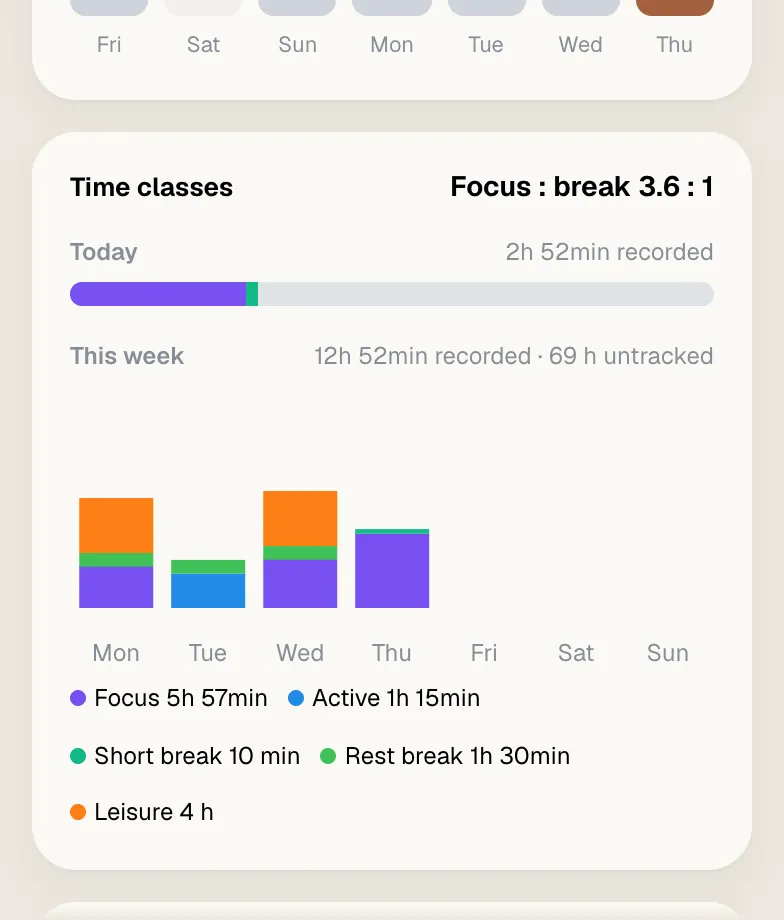
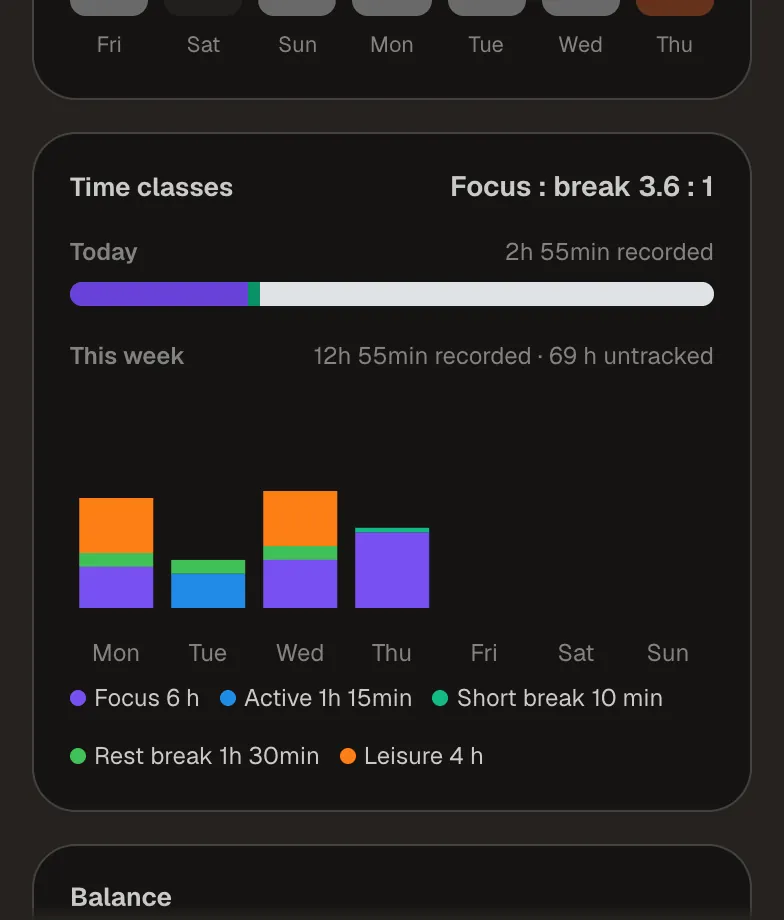
The “Time classes” dashboard widget shows how your time splits into focus, active, breaks and leisure, how much is untracked, and your focus : break ratio – for today and this week.
Five minutes at the end of the day
A short wrap-up keeps your data clean and makes the next morning easier.
Check running timers
Open time tracking with O, then T, and save any timers still running. Only use “Discard” if you really don't want to keep the time – no entry is created.
Correct entries
Open the project's “List” view and fix entries whose times are off. Add a forgotten break under “Phases” in the entry. Paid entries are locked.
Log your habits
Under Habits → Today, log what you did today. If you missed a day, switch to its date at the top and log it there.
Prepare for tomorrow
Go through Tasks → Today, move anything left over to “Tomorrow” under “Planned”, and glance at the next day in the calendar.
The weekly review
Once a week it pays to look at the numbers Self-Engine collects anyway. Here is where to find them:
Dashboard
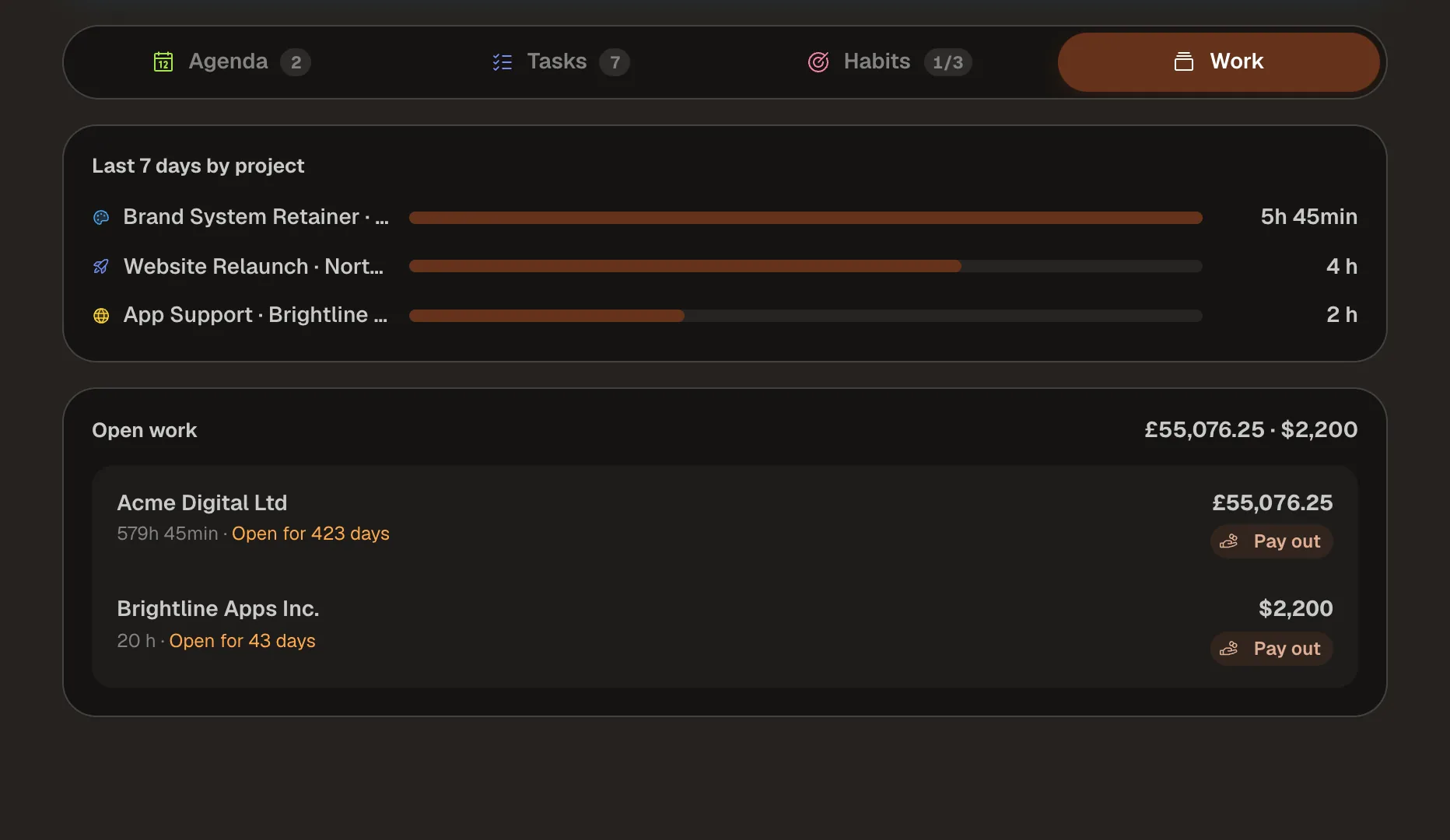
“Last 7 days” compared with the week before, “Last 7 days by project”, your effective hourly rate for the month and “Open work” with every hour not yet paid out.
Project review
In the project under “Review”: activity heatmap, your typical working hours across the day and the last 30 days compared with the 30 before.
Finance
Under Payments → Overview: income and expenses per month, broken down by tag, contact and account.
Habits
In the overview, “Consistency” shows all habits as a heatmap, along with your 30-day success rate and best streak.
Tasks
“Completed” shows what you finished, newest first.

Tip If the AI assistant is enabled, it can sum up your week – ask it, for example: “How many hours did I book per project this week?”
More tips
- Choose the project type by how you get paid: Hourly for billed hours, Project-based for a fixed price, Employment for a salary. Only project-based work is linked to a finance project.
- Settle up regularly: “Open work” on the dashboard highlights amounts older than 30 days, and “Pay out” takes you straight to the project's payout.
- Link a habit such as “Learning” to a project. Tracked project time then counts toward the habit automatically, without entering it twice.
- Mark projects you work on often as favorites in the cockpit – they move to the top of the picker.
- Press T, then S to start or submit a timer without reaching for the mouse. ⌘ / Ctrl + K opens the command palette for everything else.
- Plan holidays for your habits with “Schedule pause” so the days off don't count as missed.