Account and settings
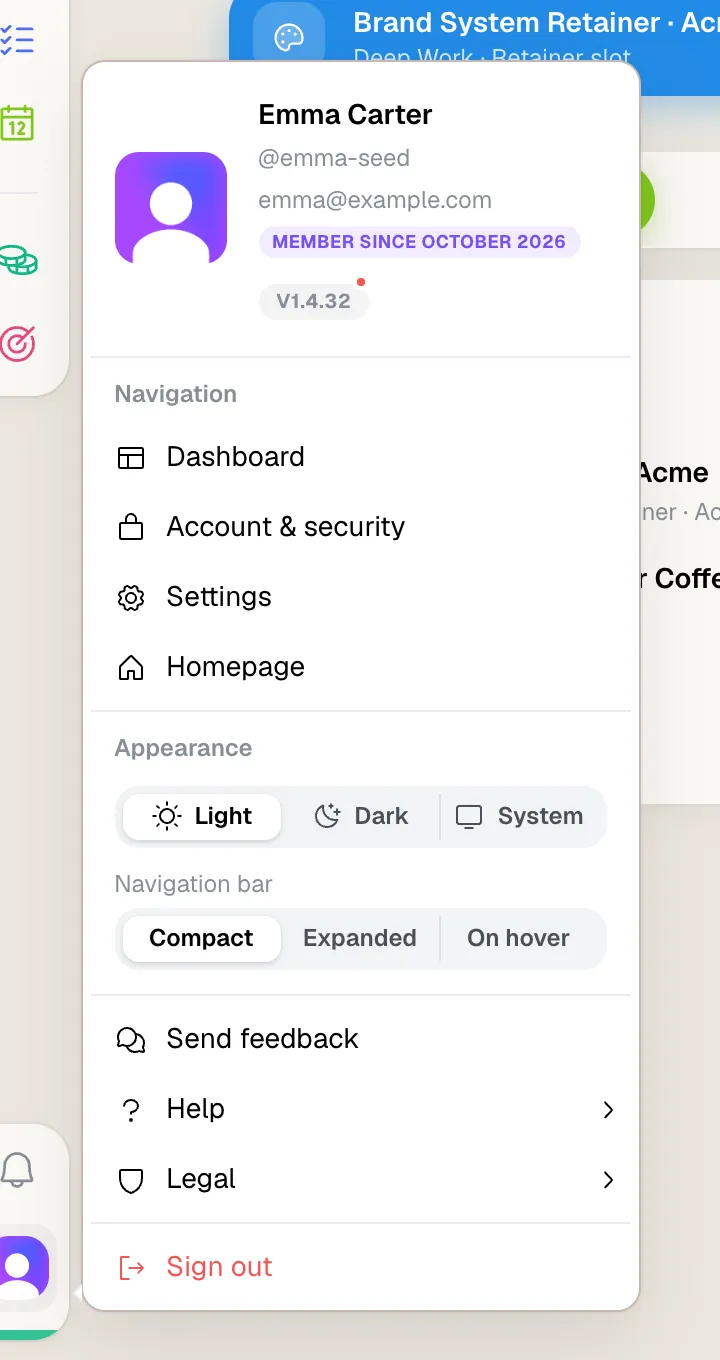
You reach both from your profile picture at the bottom of the app rail. They do different jobs:
Account & security
Everything about your account: profile, sign-in and security, subscription, data export and account deletion.
Settings
How Self-Engine works for you: language, appearance, notifications, keyboard shortcuts and the settings of each module.
Account & security
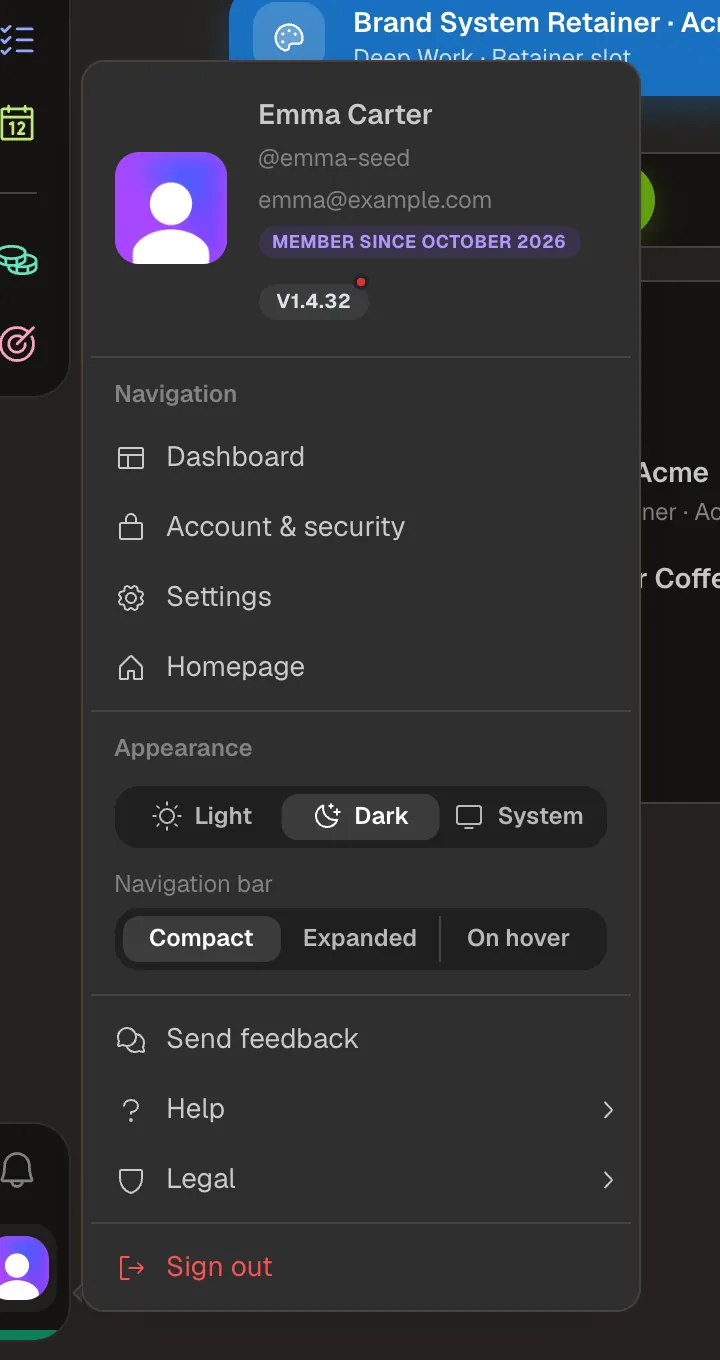
Click your profile picture and choose “Account & security”.
- This is where you manage your profile, your sign-in methods and your account's security.
- You'll find “Sign out” in the profile menu and on this page.
Heads up Signing out removes the local copy of your data from this device. Wait until everything has synced first, or changes that haven't uploaded yet will be lost. See “Devices, offline & sync” for more.
Subscription
To use Self-Engine you need a subscription or an invite code. You choose either during setup.
Self-Engine Pro
A monthly subscription, without a free trial. It includes all five modules, the web and Mac apps, all future features and the optional AI assistant with a monthly usage quota. Paid sign-ups open with the beta; you'll find the prices and the founding price on the homepage.
Friends & testers
If you were invited, enter your invite code and click “Activate free access”. You then use Self-Engine for free, no payment details required.
- You can cancel your subscription at any time, effective at the end of the current term: in your account settings or via the “Cancel contracts here” button in the website footer.
- Billing is in US dollars. All prices are final prices; in accordance with Section 19 of the German VAT Act (UStG), no VAT is charged.
Settings at a glance
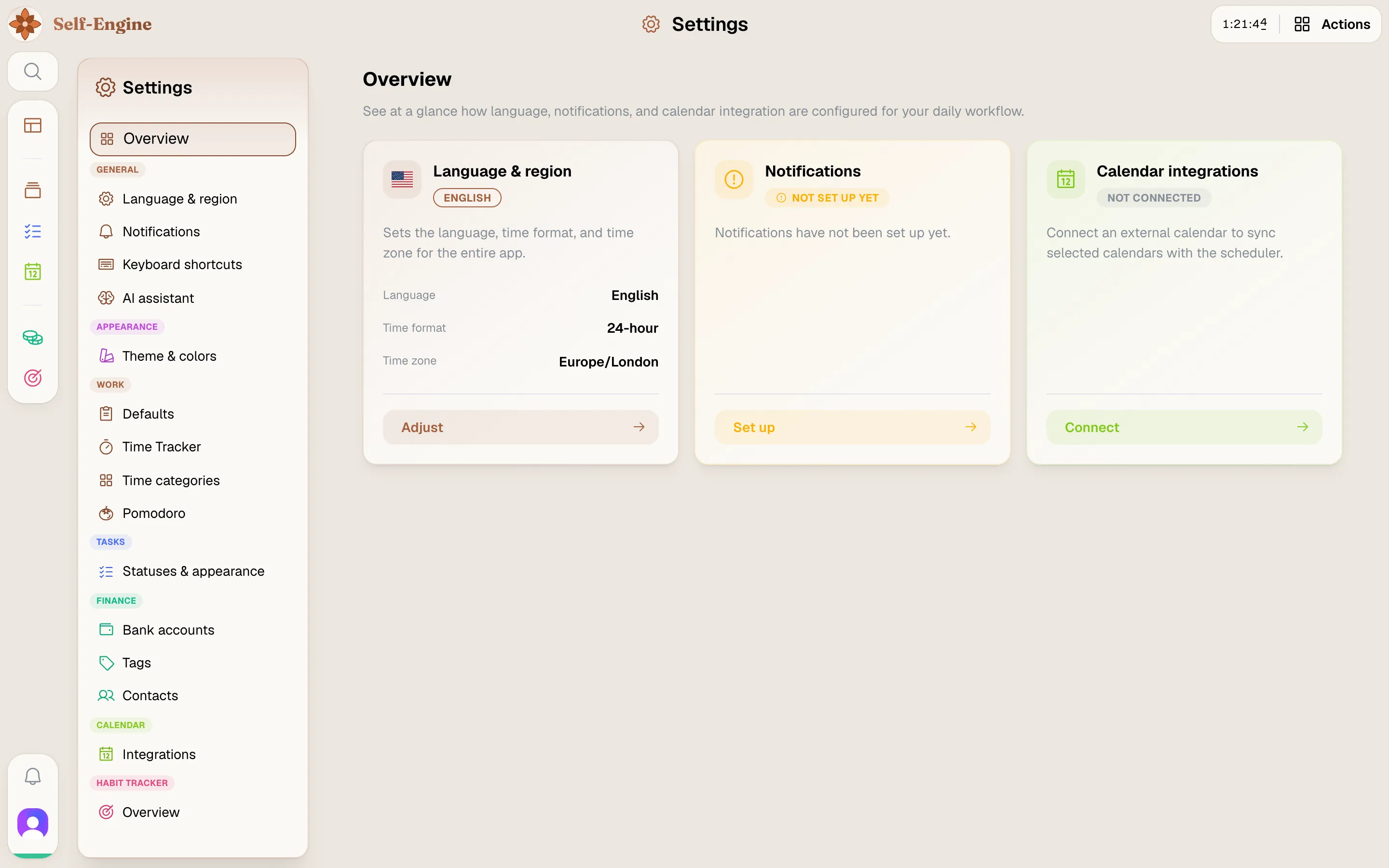
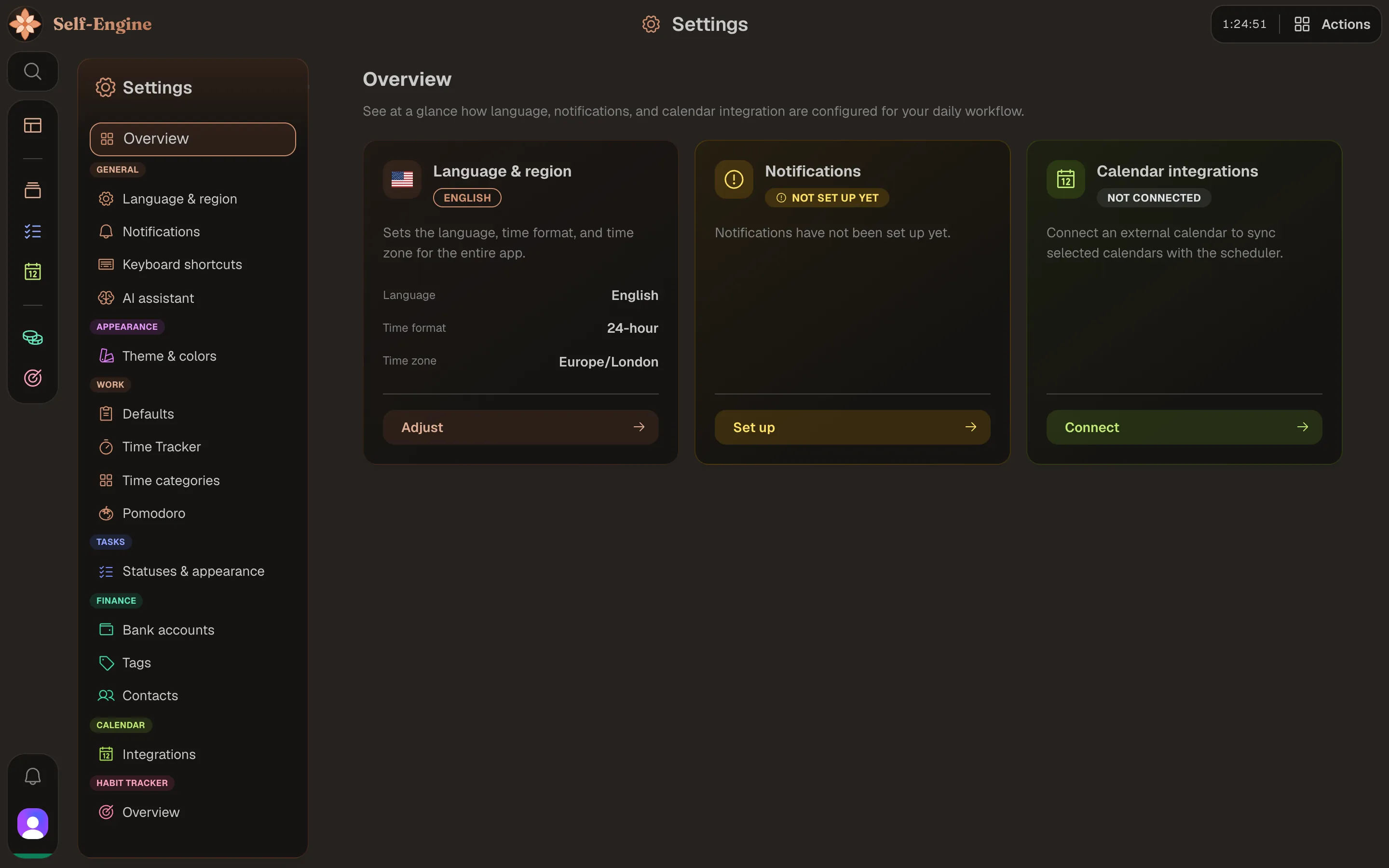
Open the settings from your profile picture → “Settings”, with G then S, or from the command palette. The overview sorts the sections into groups:
- General: Language & region, Privacy, Notifications, Keyboard shortcuts, AI assistant, Agent connections and, in the Mac app, Updates.
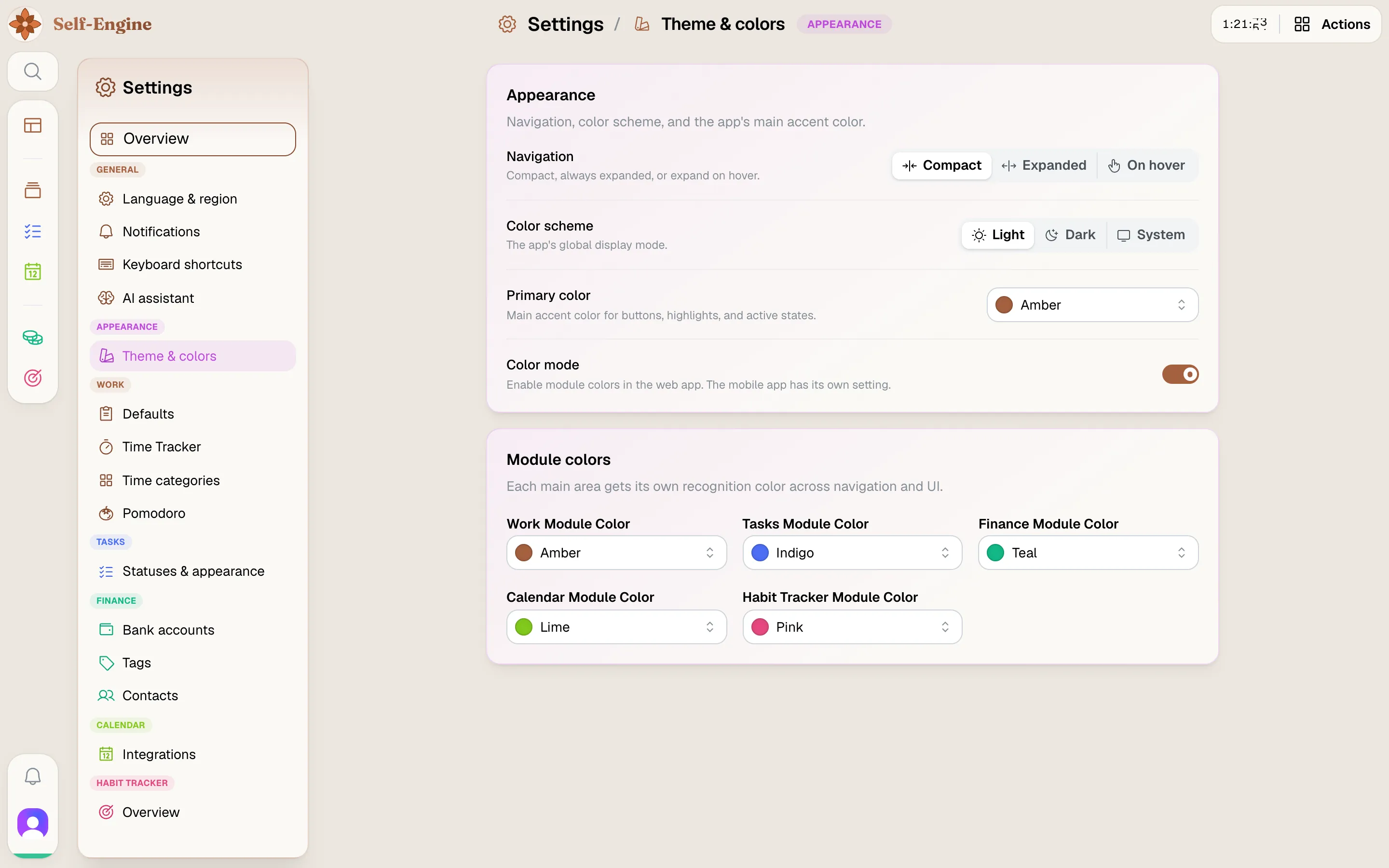
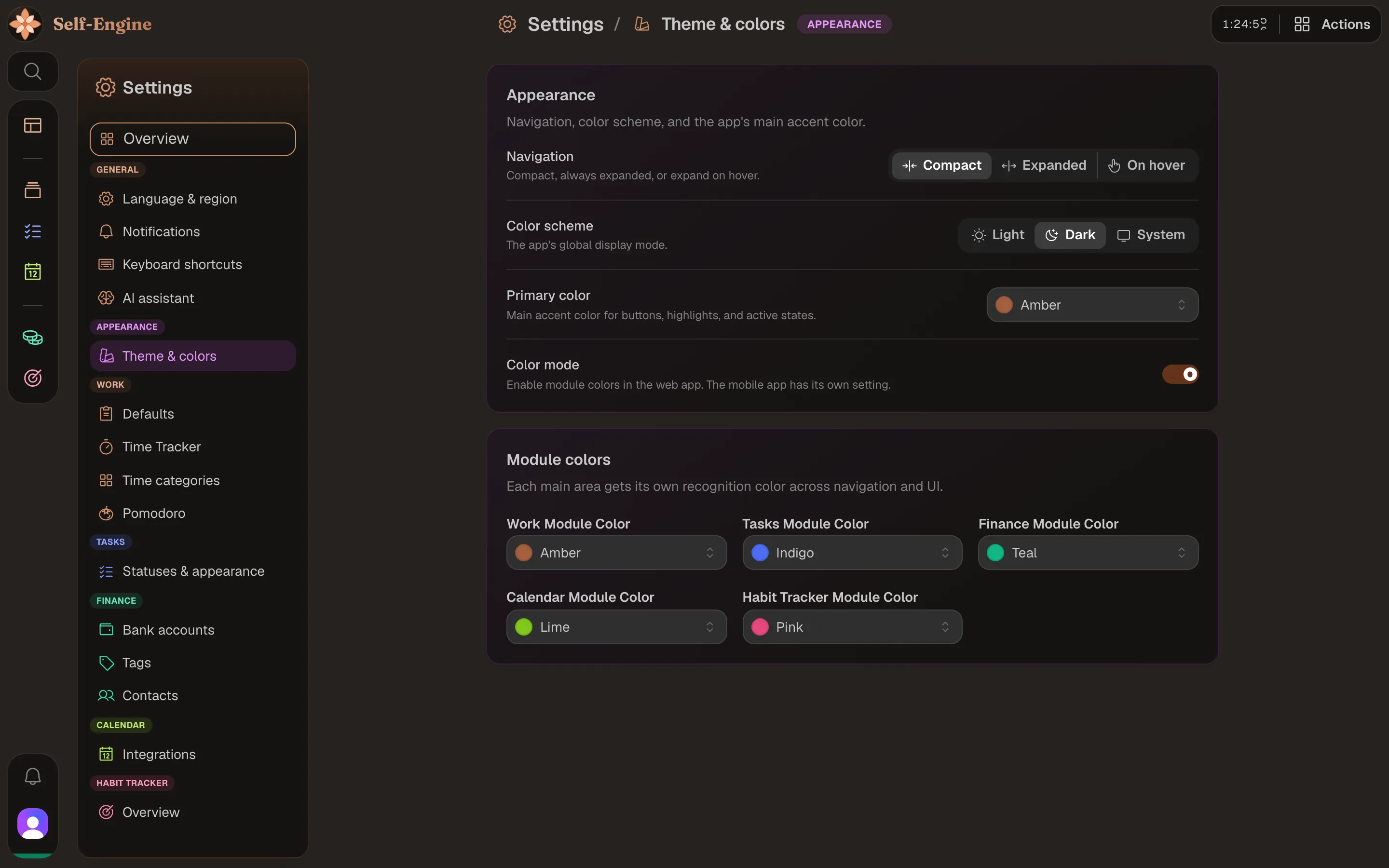
- Appearance: Theme & colors.
- Work: defaults for new projects (pay, bank account and preferred project type), Time Tracker, Time categories and Pomodoro.
- Tasks: Statuses & appearance.
- Finance: Bank accounts, Tags and Contacts.
- Calendar: Integrations for Google and Apple calendars.
- Habit Tracker: an overview with the way to your habits.
Note Agent connections, which let external AI agents access your account, aren't enabled for every account yet.
Language, appearance and notifications
Whatever you chose during setup, you can change here at any time:
Language & region
Language (German or English), time format, default time zone and default currency.
Theme & colors
The Light, Dark or System color scheme, the navigation's look, your base color and the module accent colors. ⌘ / Ctrl + Shift + L switches the color scheme from anywhere.
Notifications
Allow browser notifications and choose whether they also appear outside the app. The permission applies per device and browser.
Privacy Mode
Selected accounts have Privacy Mode under Settings → Privacy. There you mark private projects and private habits. While the mode is on, Self-Engine hides them from its lists, for example when you share your screen. O then P toggles it.
Note Privacy Mode only hides things. It doesn't encrypt or delete anything and isn't a protected vault: the data stays in your account and keeps syncing.
Export your data
You can download all your data as a JSON file at any time.
Wait for sync
The export reads your data from the server, so wait until the sync status shows “Synchronized” to include your latest changes.
Start the export
Open “Account & security” and, under “Your data”, click “Export my data”. The file downloads right away.
- Included: all your entries from every module and your settings, grouped by area, plus your consent to the legal documents, your feedback on the AI assistant, and your agent connections and their activity.
- Not included: access keys and other secrets, internal counters and sync bookkeeping.
Note The export is a copy for keeping or passing on. There's no way to import it back. You start the export in the web app or the Mac app.
Delete your account
If you no longer want to use Self-Engine, you can delete your account yourself.
Choose delete
Open “Account & security” and, under “Danger zone”, click “Delete account”.
Confirm
Type the sentence shown exactly, for example “Delete yourname”, and confirm. Self-Engine deletes your data and your account and sends you a confirmation email.
Heads up Deletion can't be undone. Export your data first if you want to keep it.
What's new, feedback and legal
You'll also find these in the menu behind your profile picture:
What's new
Clicking the version number shows every new feature, fix and improvement. A red dot means there's something new since you last looked. With the AI assistant enabled, “Summarize with AI” sums up the changes for a period you choose.
Send feedback
Send us bugs, questions or wishes. Adding your contact details is optional.
Legal
Imprint, Privacy Policy, Terms of Service and Acknowledgements.
When the Terms of Service or Privacy Policy change, Self-Engine asks you to confirm the new versions. If you decline, you're signed out and can continue later once you agree.