Where you can use Self-Engine
With one account you can use Self-Engine on several devices. Your data is the same everywhere.
Web app
Runs in any current browser with nothing to install, on computers, tablets and phones.
Mac app
Self-Engine as its own app on your Mac, with a timer in the menu bar and system notifications. Still in an early alpha phase.
Phone
The web app also runs in your phone's browser. Native apps for iPhone and Android are in the works.
Install the Mac app
You can get the Mac app from the Self-Engine download page.
Download
On the download page, click “Download for Mac (Apple Silicon)”. If your Mac has an Intel processor, use the “Download the Intel version” link instead.
Install
Open the downloaded file and install the app into your Applications folder as usual.
Sign in
Launch the app and sign in with your account. The first launch needs an internet connection; after that the app also works offline.
- Requirements: macOS 11 or later. The app is signed and notarized.
- The Mac app shows the same Self-Engine as the web app, with every module and feature. On top come the menu bar, system notifications and updates for the app itself.
Heads up The Mac app is still in an early alpha phase. You may run into bugs and unexpected behavior. You can reach us via “Send feedback” in the profile menu.
Mac app updates
The Mac app shows the Self-Engine web app, so new versions of the web app reach you there too, without a separate update. The Mac app itself checks for updates at launch and regularly afterwards. Downloading and installing is up to you, though.
Download the update
When an update is available, your profile menu shows a notice. Click “Download” there. “Check for updates” lets you check yourself.
Restart
Once the update has downloaded, click “Restart now”. The app restarts with the new version.
Note Under Settings → Updates you can turn “Check for updates automatically” on or off. This section only exists in the Mac app.
Apps for iPhone and Android
Native apps for iPhone and Android are in development but not publicly available yet. There's no release date yet.
Until then, simply open Self-Engine in your phone's browser. The web app adapts to small screens and uses the same data as on your computer.
Working offline
Self-Engine keeps a copy of your data on your device. You always work with that local copy first, which is why the app feels fast and keeps working without internet.
Note The first sign-in on a device needs internet: that's when Self-Engine downloads your data and the app itself. After that you can open it offline too. If you've never signed in on a device, you'll see an “Offline sign-in required” notice while offline.
Works offline
Starting and submitting timers; creating and editing projects, time entries, tasks, habits and transactions; viewing everything already synced. Your changes wait on the device and upload as soon as you're back online.
Needs internet
Signing up and the first sign-in, accepting new terms, subscription and invite code, the AI assistant, data export and account deletion, and connecting and syncing Google and Apple calendars.
Appointments from connected calendars that have already synced stay visible offline. Changes made at the provider only arrive once you're back online.
Syncing between your devices
Each device syncs its changes with the server whenever it's online. That way, what you create on your Mac also shows up in your phone's browser. Devices don't talk to each other directly: both need a connection for a change to arrive.
Synced
All your entries in every module, plus the settings that shape how you work: language and time format, colors, Pomodoro durations, task views and saved filters, keyboard shortcuts, tour progress and which release notes you've already seen.
Stays on the device
Anything tied to this screen: sidebar and board column widths, expanded and collapsed panels, open workspace tabs and the last view you had open. Your browser notification permission and your AI assistant chats also stay on the device.
Note The local copy isn't a backup. It's tied to your sign-in on this device. To keep a copy of your data, use the data export, see “Account, subscription & data”.
When something doesn't sync
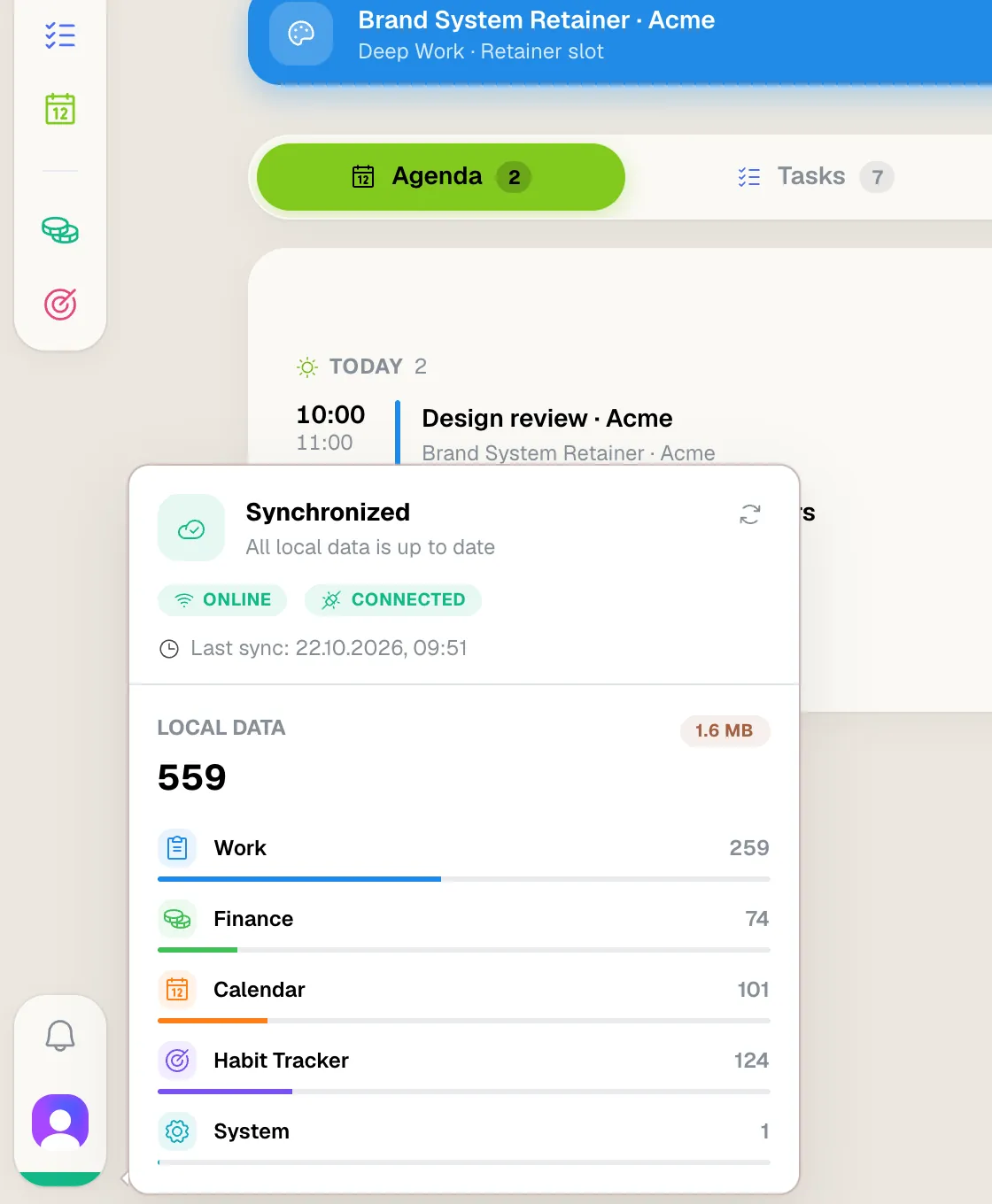
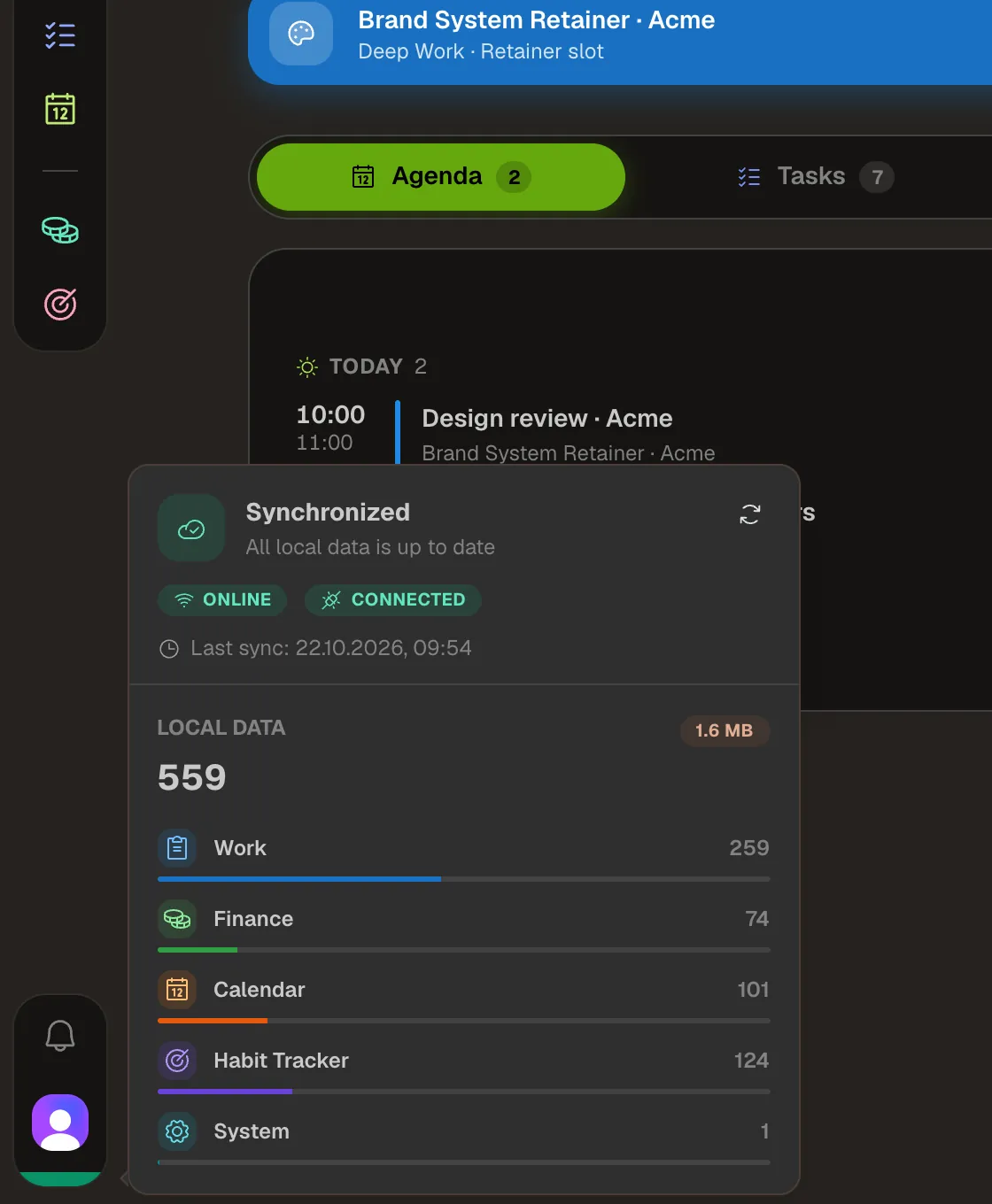
At the bottom of the app rail, below your profile picture, a colored strip shows the sync status. Clicking it opens the database status with details and the time of the last sync. The main states:
- “Synchronized”: all local data is up to date.
- “Sync in progress” or “Connecting”: Self-Engine is uploading or downloading. You can keep working as usual.
- “Offline”: no connection. Your local data is available and changes will upload later.
- “Sync issue”: the connection to the server isn't working. Your local data stays usable.
Check the connection
If a change is missing on another device, check that both devices are online. The device where you made the change has to upload it first.
Reconnect
Open the database status and click “Reconnect” or “Refresh”.
Watch for rejected changes
In rare cases the server permanently rejects a change, for example because it no longer fits your data. Self-Engine reports this and discards that one change so your other changes aren't blocked.
Heads up Don't clear your browser's site data or sign out to fix sync problems. Changes that haven't uploaded yet would be lost.
Signing out safely
When you sign out, Self-Engine removes the local copy of your data from this device. Everything already synced stays in your account.
Wait for sync
Make sure you're online and wait until the sync status shows “Synchronized”. Only then are all of this device's changes on the server.
Sign out
Click your profile picture and choose “Sign out”. You'll also find “Sign out” under “Account & security”.
Tip When you sign in again, Self-Engine downloads your data afresh. That needs an internet connection.