How shortcuts work
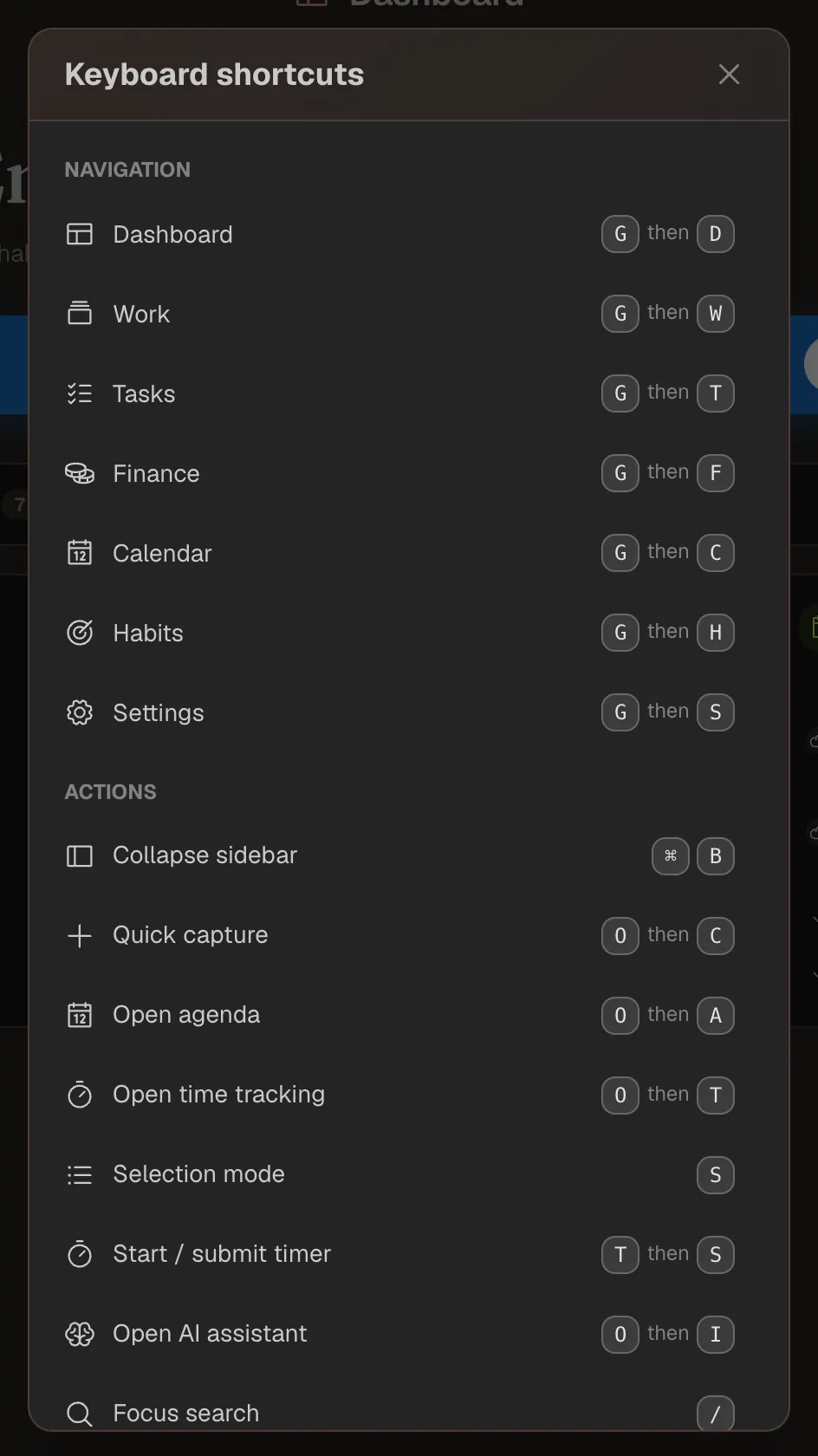
Shortcuts work in the web app and in the Mac app. Two are worth remembering: ? shows every shortcut at any time, and the command palette reaches every command by search.
- ⌘ / Ctrl means the Command key on a Mac and Ctrl on Windows and Linux.
- “G then D” means: press G, let go, then press D. Single letters are pressed without Shift.
- While you type in a text field, the letter shortcuts are off. Shortcuts with ⌘ / Ctrl, such as the command palette, work there too.
Show all keyboard shortcuts
?Open the command palette
⌘ / Ctrl+K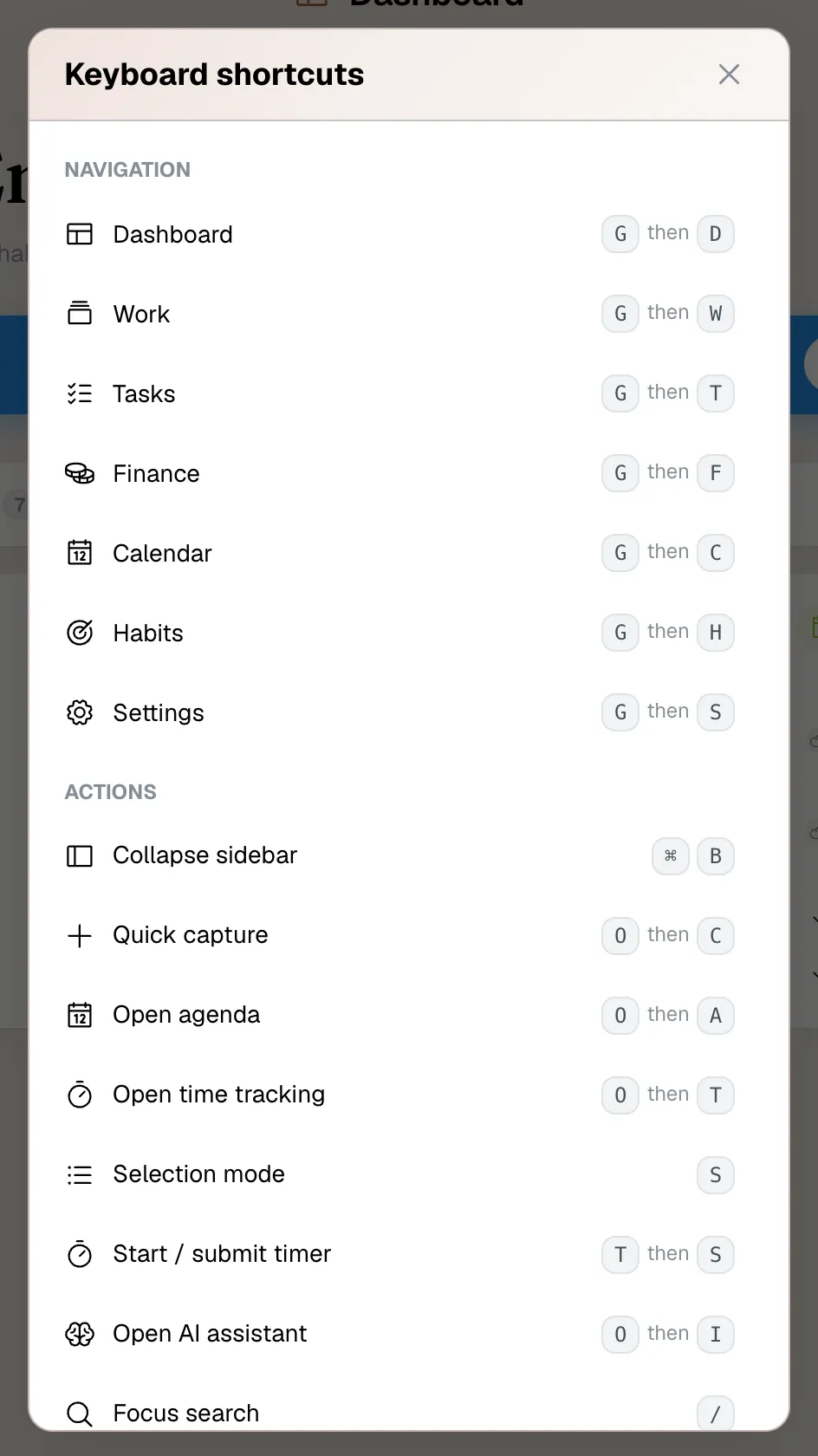
Capture and act
The most common actions have their own shortcuts. O stands for “open”.
Create the main item of the current page
NQuick capture: a task, appointment, payment and more from anywhere
OthenCStart or submit a timer
TthenSOpen or close time tracking
OthenTOpen or close the agenda
OthenAOpen the AI assistant (when enabled)
OthenITurn selection mode for several items on or off
SSwitch the color scheme: dark, light, system
⌘ / Ctrl+Shift+LNote N adapts to the page: in Tasks it adds a task, in a project a time entry, in the calendar an appointment, in Finance a transaction, a recurring transaction or a finance project. T S starts the top timer when none is running and submits it when exactly one is running. If several run, time tracking opens so you can choose.
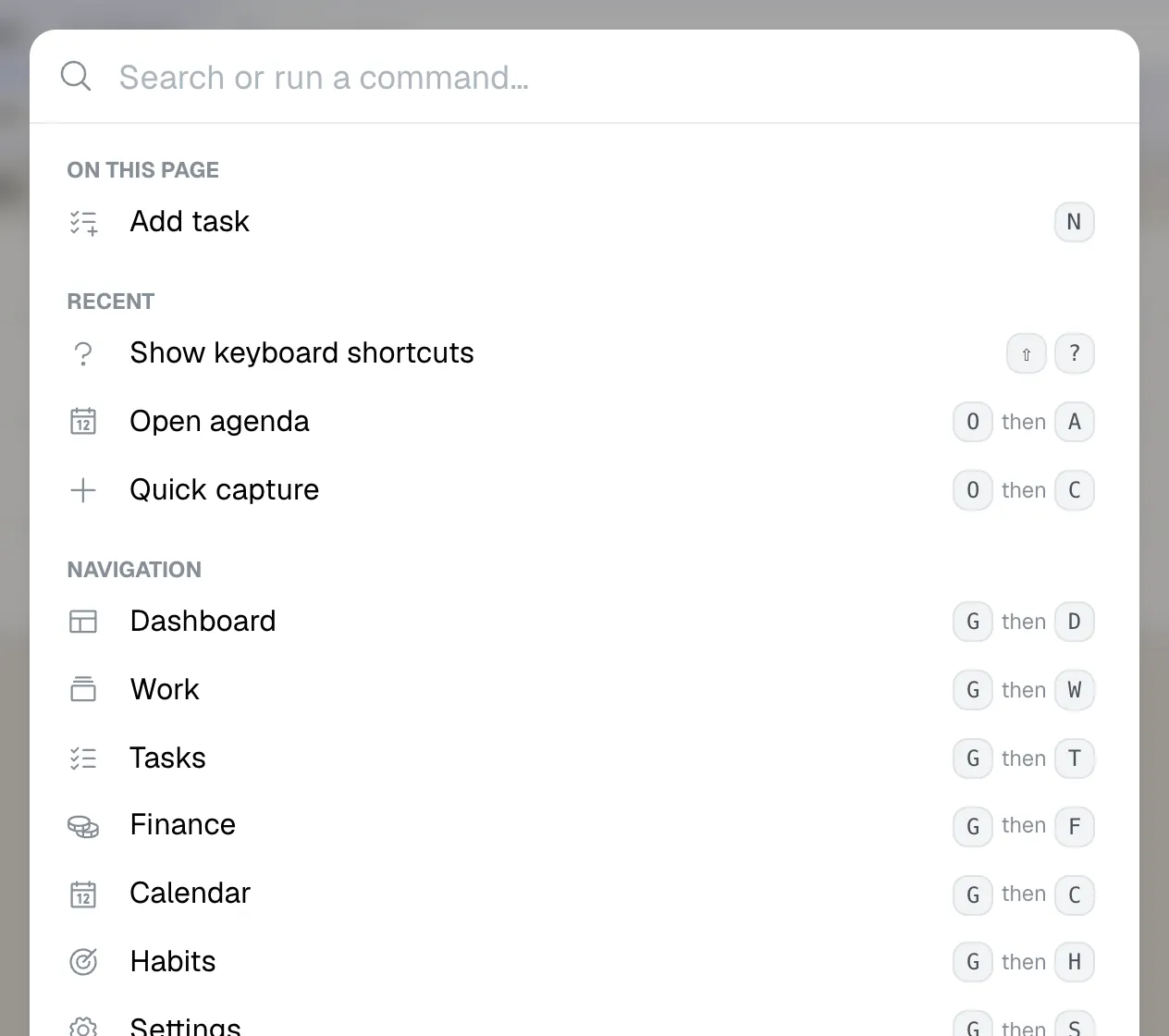
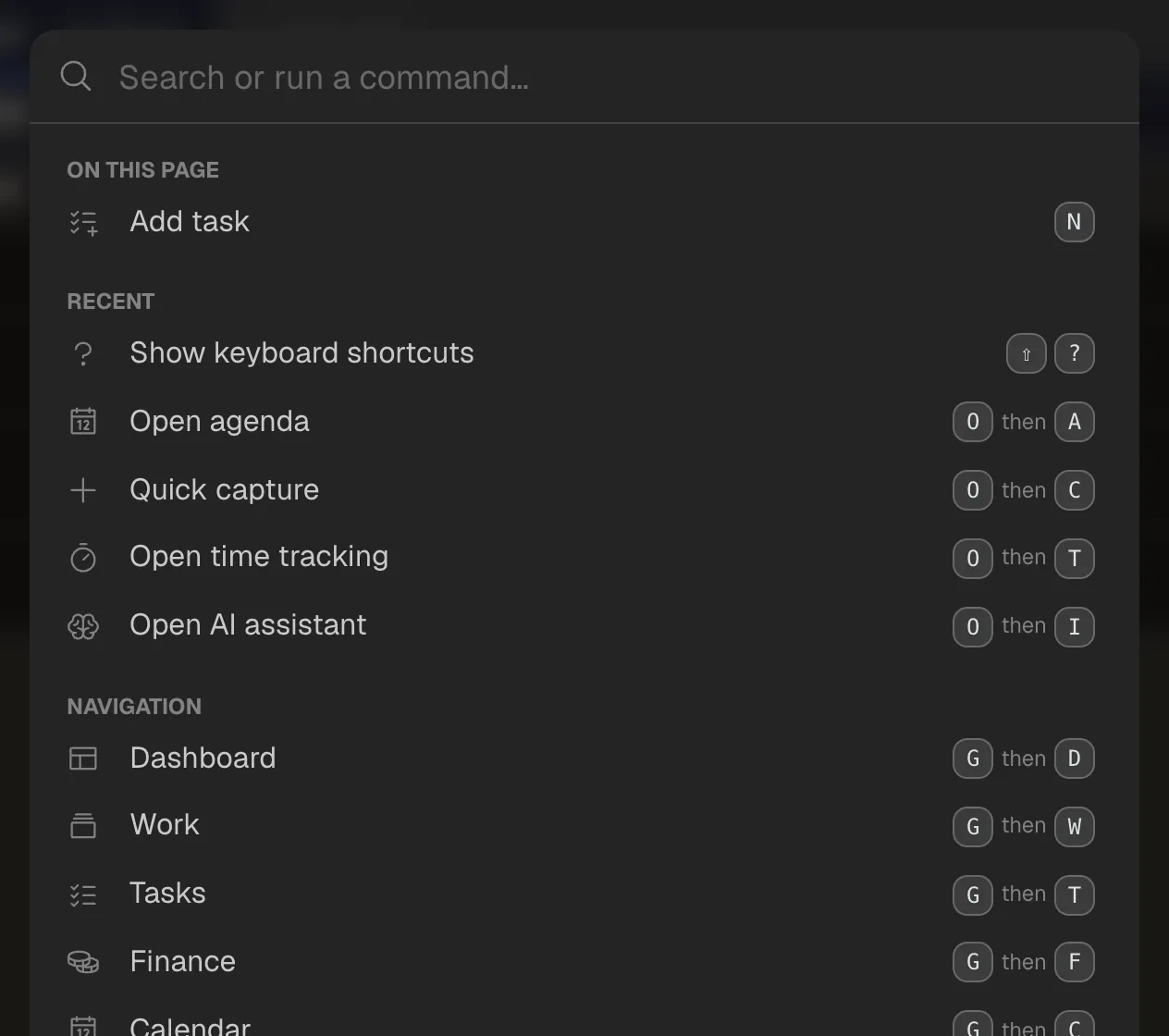
The command palette
⌘ / Ctrl + K opens the command palette. Type a few letters and it finds any command: pages, views, creating things, the color scheme, “What's new” and more.
- ↑ and ↓ choose, Enter runs, Esc closes the palette.
- Many commands deliberately have no shortcut of their own, such as single views like Inbox or Planned, the finance sections or creating something in another module. The palette still reaches them in seconds, and you can give them a shortcut in the settings.
Customize shortcuts
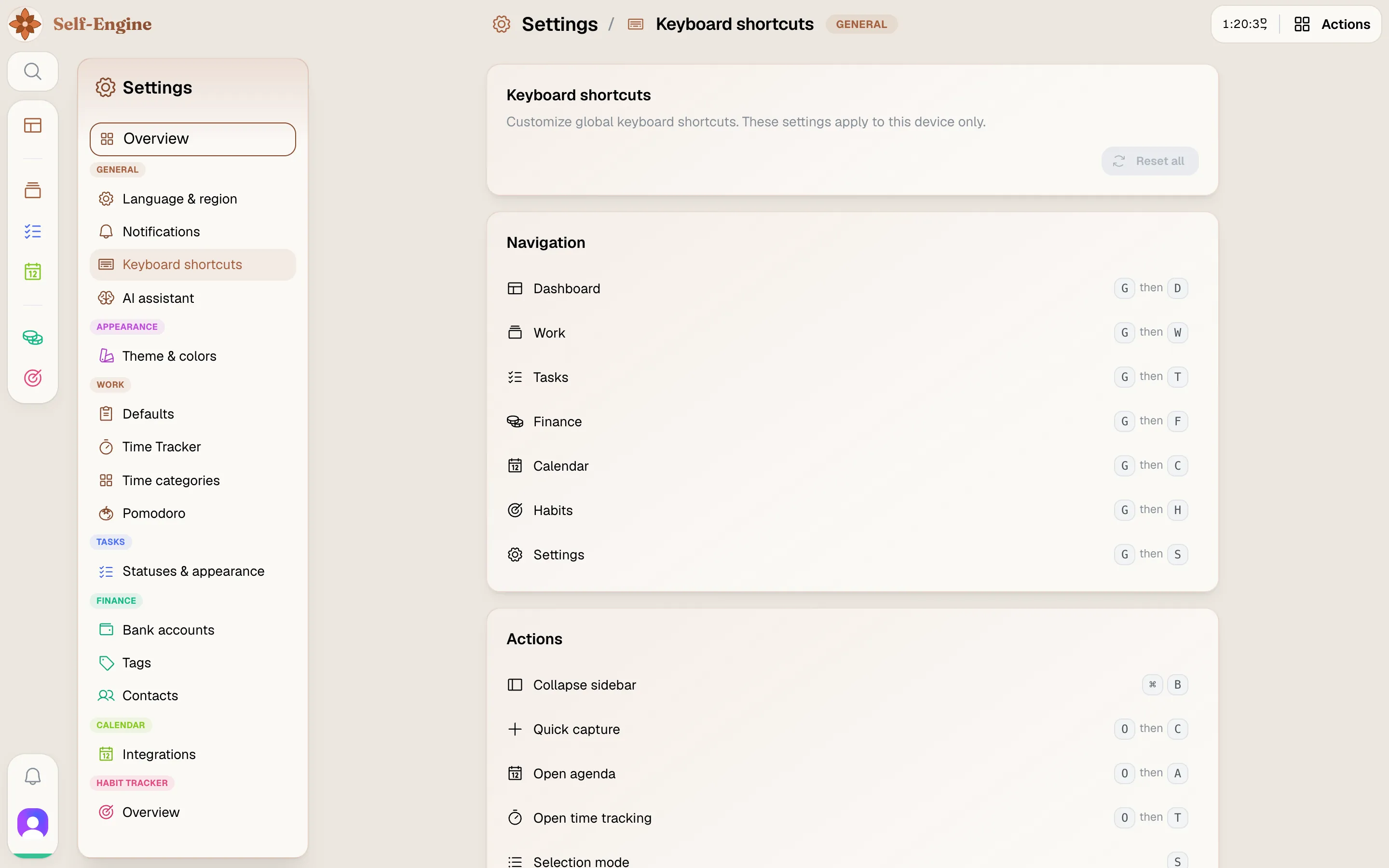
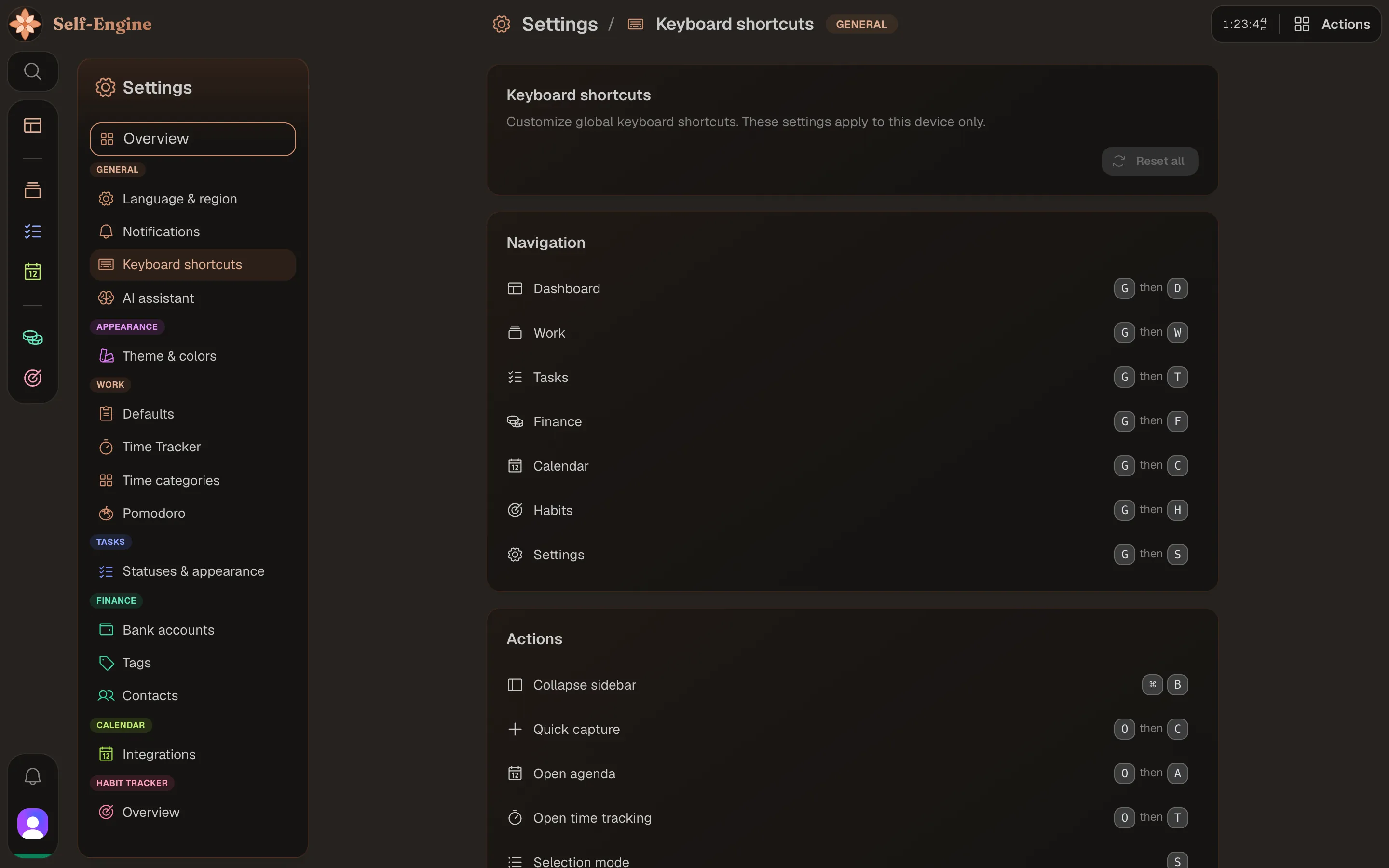
Every shortcut can be changed, turned off or reset.
Open the settings
Press G then S, or open the settings from your profile picture, and choose “Keyboard shortcuts” under General.
Record a new shortcut
Pick a command and press the new key combination or sequence. The other shortcuts pause while you record.
Turn off or reset
Turn off a single shortcut that gets in your way. “Reset all” restores the defaults.
Tip Your shortcuts sync with your account, so they apply on every device you are signed in on.
Keys inside views
Some views bring keys of their own:
- When renaming and when quickly adding subtasks, Enter confirms and Esc cancels.
- When time entries overlap, pick the offered solution with 1, 2 or 3 and confirm with Enter.
- On the task board, change a column's width at its handle with ← and →; Home and End jump to the narrowest and widest width.