What the assistant does
The AI assistant is an optional chat inside Self-Engine. You write in your own words; it answers questions about the app, looks up your data and prepares changes for you to confirm.
Help with the app
Ask “How do I pause a habit?” and get an answer based on these guides.
Answers from your data
“How many hours did I work on my client project last week?” It looks up the relevant entries and sums them up.
Changes on request
Create tasks, log time, add appointments or book transactions. Every change waits for your confirmation.
Open views
“Open my reading habit” takes you straight to the right page.
Note The assistant is off until you turn it on. Only when you ask it something is data sent to a language model.
Turn it on
You decide once whether you want the assistant, and you can change your mind anytime.
During setup
When you set up your account, the AI step asks “Enable the AI assistant?”. Choose Yes, enable it or No, keep it disabled.
Or later in the settings
Open Settings → General → AI assistant and turn on Enable AI assistant. You turn it off the same way.
See what's shared
On the same page, “What is shared?” lists which data leaves your device, and Usage shows how much you have used.
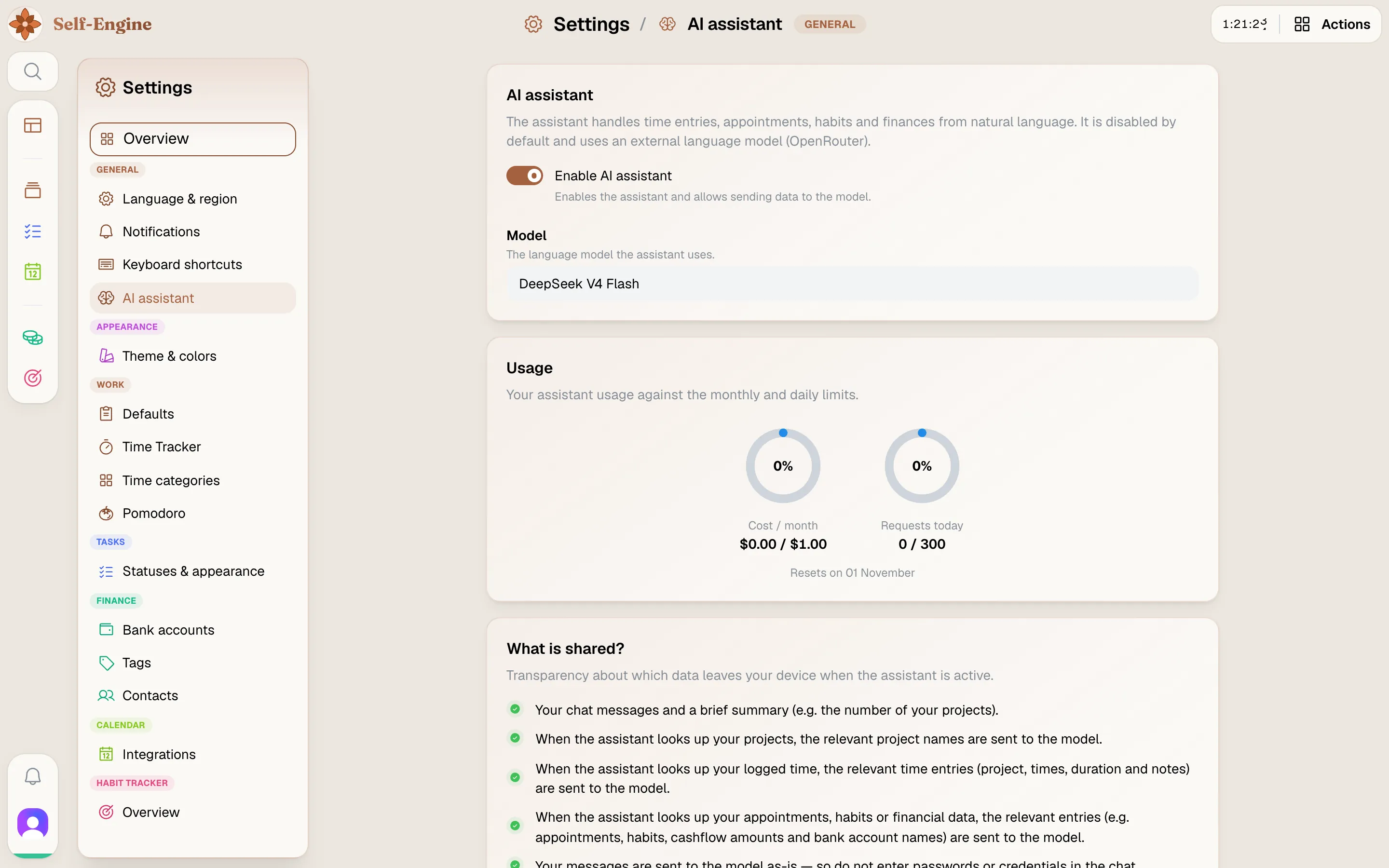
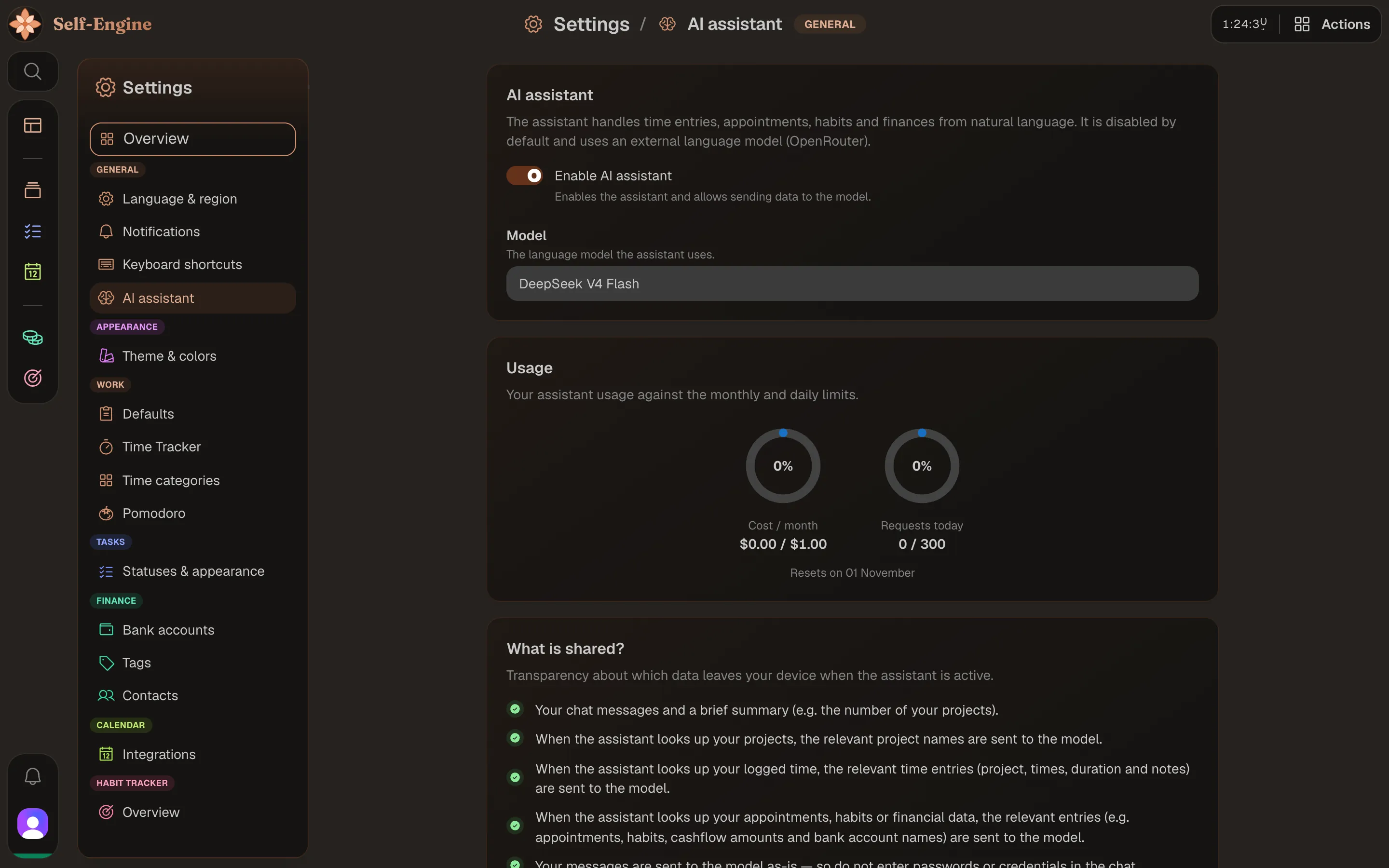
Tip Turning it on alone sends nothing. Data only leaves your device once you give the assistant a concrete request.
Open and chat
Once it is on, the assistant is available in the web app and in the Mac app.
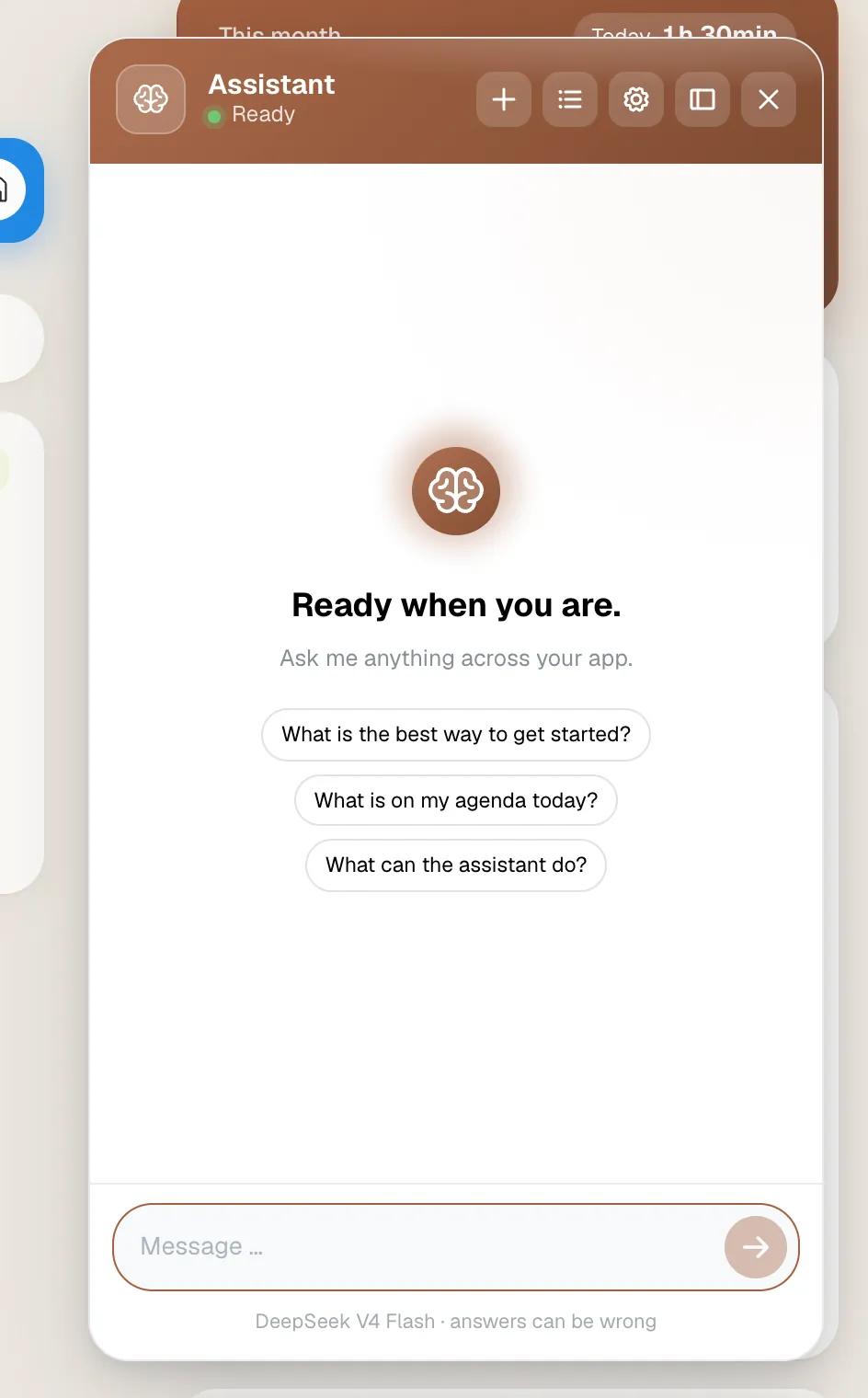
Open the AI assistant (press O, then I)
OthenI- Click AI assistant in the header, or search for “Open AI assistant” in the command palette (⌘ / Ctrl + K).
- In the Mac app, the menu bar popover has its own AI assistant tab.
- Enter sends, Shift + Enter adds a line break. Suggested prompts help you get started.
- New chat starts a fresh conversation. Conversations reopens earlier chats or deletes them.
- On wide screens, Dock to sidebar places the chat next to the page; Undock (floating) detaches it again.
- The mobile apps, still in development, don't include the assistant yet.

What it can do in each module
The assistant works with a fixed set of actions. What isn't listed here, it can't do, even if the module itself can.
Projects & time tracking
Find and create projects and change their title, description, color or icon. Search, create, change and delete time entries, summarize booked time and unpaid earnings, and start, adjust, stop and log or discard timers.
Tasks
Search tasks, create tasks and subtasks, change details and status, move tasks to the trash and restore them.
Calendar
Search, create, change and delete appointments, link an appointment to a project and log time from a finished linked appointment. Appointments from Google Calendar are read-only.
Habits
Look up habits and their entries, log a habit, change the amount or note of an entry and delete manual entries.
Finance
Look up and create bank accounts, and search, book, change and delete one-off transactions.
Help & navigation
Answer questions using the guides and open pages such as the dashboard, a module or a single project, task or habit.
Note Not possible with the assistant: creating, editing, pausing or archiving habits; changing a project's payment type or rate; deleting projects; recurring transactions and transfers; task statuses; settings; and anything outside Self-Engine such as web search or email.
You confirm changes
By default the assistant never changes your data on its own. In the AI assistant settings you can turn off “Ask before changing” per kind of data; permanent deletes always ask. This is how a confirmed change works:
Ask
Describe what you want, as precisely as you can: title, date, amount, project.
Check the preview
Before every change, Confirm action shows exactly what will be created, changed or deleted.
Confirm or cancel
Confirm carries out the change. Cancel discards it and nothing is saved.
- Looking things up needs no confirmation. You see each lookup as a step in the chat.
- Deleting time entries, appointments, habit entries or transactions is permanent. Tasks only go to the trash and can be restored.
- The assistant can get things wrong. Rely on the preview, not on its summary.
Privacy
What leaves your device when you use the assistant:
- Your messages, exactly as you write them, and a brief summary such as the number of your projects. Not a copy of all your data.
- When the assistant looks something up, the matching entries are sent along, for example project names, time entries with notes, appointments, habits, transaction amounts and bank account names.
- Requests go through OpenRouter to an external language model. Zero Data Retention (ZDR) is enabled: OpenRouter and the model provider may neither store the data nor use it for their own purposes, including model training.
- Chat history is stored only in your browser (up to 30 conversations) and doesn't sync between devices. You delete a conversation under Conversations.
- Rating an answer is optional. The question and answer are only sent along if you tick “Share question and answer for improvement”.
Heads up Never enter passwords or credentials in the chat.
Usage, limits and connection
The assistant is included in your subscription with a monthly budget for model costs, plus daily and per-minute limits. It is not an extra charge.
- Settings → General → AI assistant → Usage shows today's use, this month's consumption and when the limits reset.
- A single question can use several requests, because each lookup and each step counts.
- When a limit is reached, the assistant pauses until it resets. The changelog summary uses the same budget.
Note The assistant needs an internet connection. When you are offline, the chat says so; the rest of Self-Engine keeps working offline.
Summarize the changelog
With the assistant on, you can let it sum up what has changed in Self-Engine.
Open What's new
Click the version label in the menu under your profile picture, or search for “What's new” in the command palette.
Summarize
Click Summarize with AI ✨ and choose a range: Since my last visit, Last month, Last quarter, This year or Custom range.
Read
The changelog digest is created on demand and isn't saved.
Note The summary is based only on the public release notes, not on your data. It uses the assistant's budget.
Agent connections: external AI agents
Besides the built-in assistant, you can connect external AI agents such as Claude, Claude Code or Cursor to your account. They then read and change your data from their own chat. This is a separate feature with its own switch.
Note Agent connections are being rolled out step by step. If you don't see them in your settings, they aren't available for your account yet.
Turn them on
Open Settings → General → Agent connections and turn on Enable Agent connections. Read “Where does your data go?” and confirm with Enable. This works independently of the AI assistant.
Add the connector
In your agent's connector settings, add the address Self-Engine shows you. It is your Self-Engine web address followed by /api/mcp.
Sign in and allow
Sign in with your Self-Engine account and allow read and write access. You don't need an API key.
Check the connection
Connected agents lists each agent with its host, Verified or Unverified, when it connected and when it was last used. Unverified means the name comes from the agent itself, so check the host too.
- Agents can read, create and change data, and move tasks to the trash or restore them. They can never permanently delete anything and can't discard timers.
- Self-Engine shows no Confirm action step for agents: the agent's own app decides how it asks you. Check what it plans before you let it go ahead.
- Your data goes to the provider of the agent. The ZDR setting of the built-in assistant doesn't apply there; that provider's privacy terms do.
- Expand an agent's calls in the last 30 days to see what it did: which action, when, and whether it was Executed, Refused or Failed. Only these details are logged, not the content.
- Turning off Enable Agent connections pauses all connections. When you turn it back on, they resume without reconnecting.
- Revoke ends a single connection for good. To use that agent again, you connect it anew.
- Agent connections have their own limits and don't use the assistant's budget.
Tips
- Name the real title, date, amount and unit. The fewer guesses the assistant has to make, the better the preview.
- “Stop and log” keeps your timer's time; “discard” throws it away.
- How-to questions only get an explanation: asking how to pause a habit doesn't pause it.
- If the assistant doesn't respond, check your connection and Usage first.