

Overview
You decide what a habit measures, when it is planned and what counts as success. Self-Engine scores every day, week or month, keeps your streaks and shows how consistent you are.
Today
Your daily workspace: check off, count and log every habit planned for the selected day.
Overview
All habits as cards or as a consistency heatmap, with a summary: On track today, Success 30d, Best streak and Active habits.
Habit detail
Open a habit to log, look back in Review and List, and edit, pause or archive it via More actions.
Sidebar
Search, filter and sort your habits. List view switches between Today and the last 7 days.
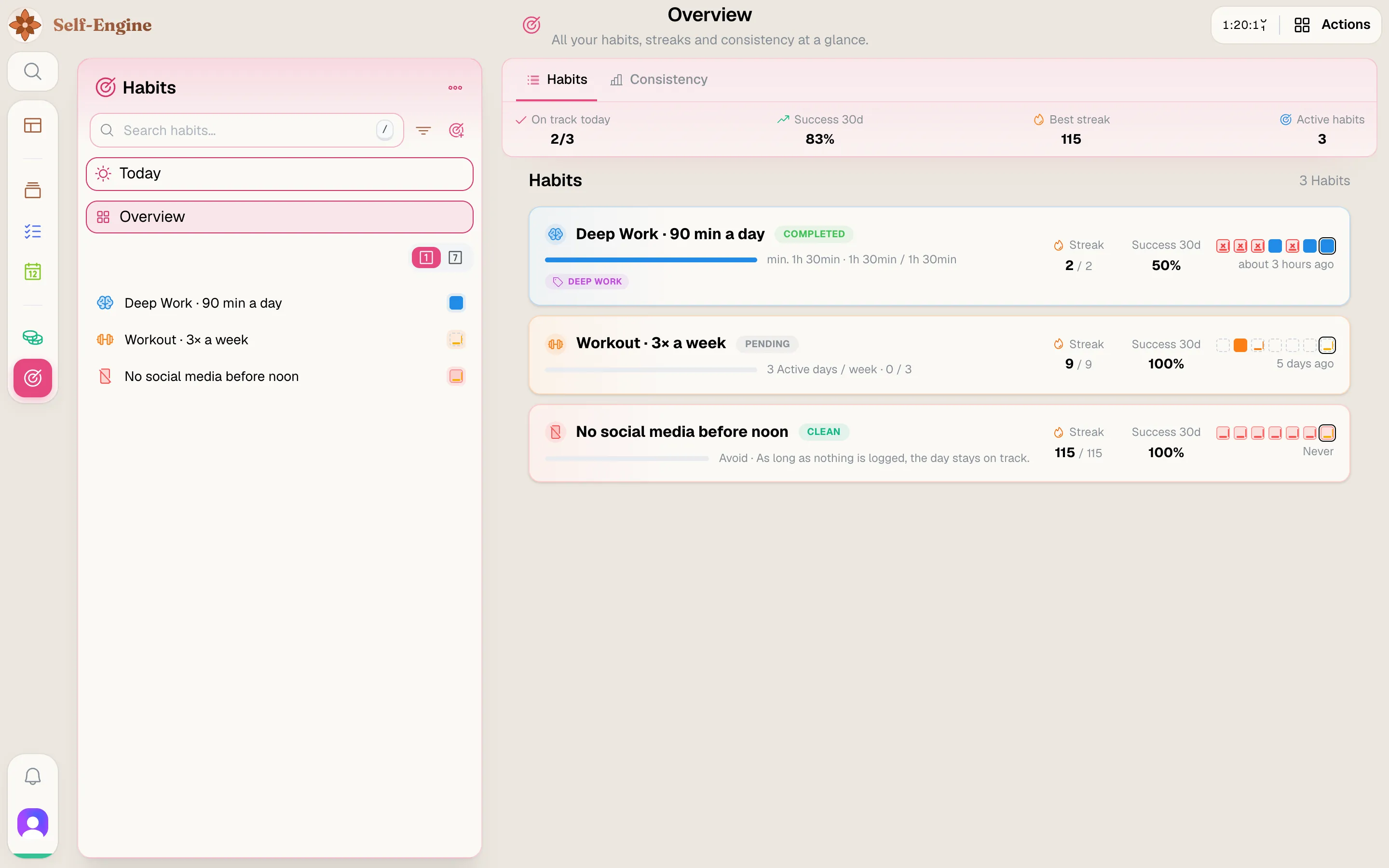
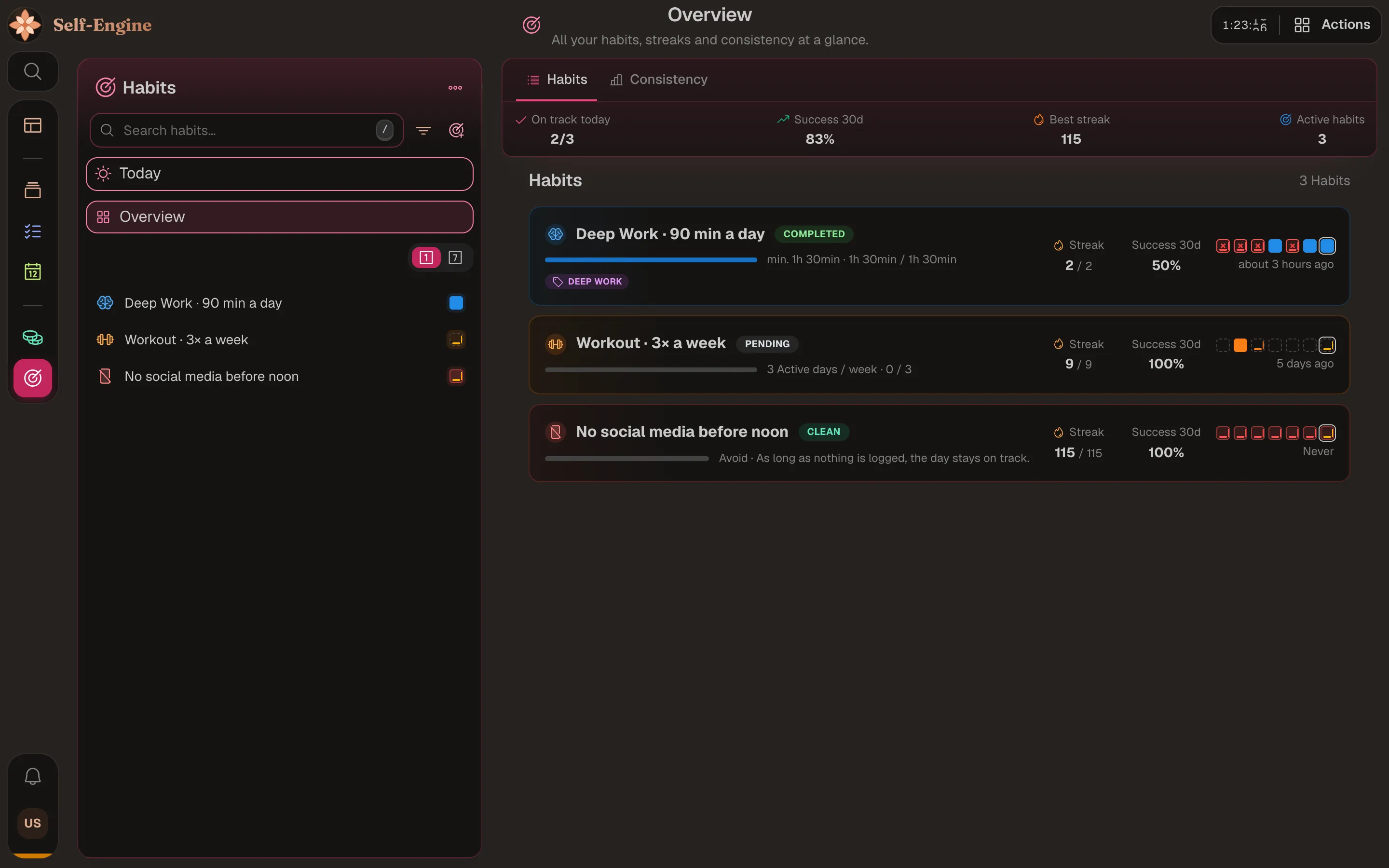
Note Logging works offline too. Your entries sync as soon as you are back online.
Create your first habit
The form asks you a few questions in turn. It takes about a minute.
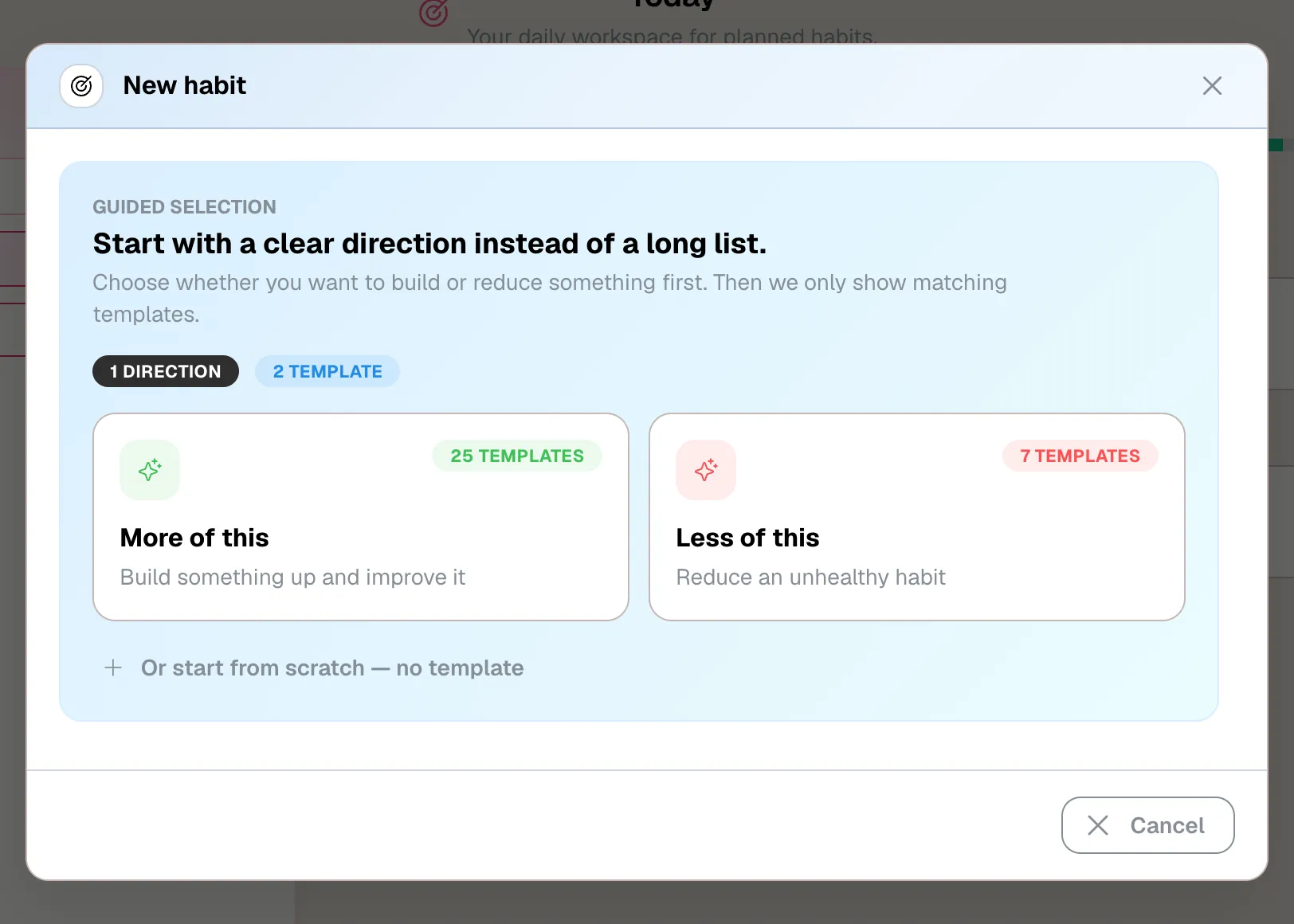
Start a new habit
Open Habits and click New habit in the sidebar.
Template or blank
Pick a template and click Use template, or choose Start from scratch. You can narrow templates down by direction, cadence and category; every default stays editable.
Fill in the basics
Enter a title and, if you like, a description, icon and color. Set the start date; an end date and tags are optional.
Measurement and rhythm
Answer “What does this habit measure?” and “When is it planned?”. The next sections explain the options.
Goal and logging
Under “What is the goal?” choose At least or At most, the target and the unit. Under “How is it logged?” choose how you want to enter progress.
Tip Example reading routine: Amount or limit, Daily, At least 30 minutes with the unit Duration.
Save
Click Create habit. From now on the habit shows up in Today on every planned day.
What a habit measures
The first question decides how a habit is logged and scored:
Simple done
Check it off when it's done. For yes-or-no routines such as meditating.
Avoid completely
Zero tolerance: a clean day needs no entry. You only log a violation when it happens.
Amount or limit
Track a number: at least a target (read 30 minutes) or at most a limit (3 coffees).
X times per period
Count the days per week or month on which you did it. Each day counts at most once.
Active days
Count the days on which you reach a daily minimum, for example 3 days a week with at least 30 minutes each.
Rhythm and goal
Under “When is it planned?” you choose the rhythm:
Daily
Planned every day and scored per day.
Weekdays
Planned only on the days you pick, for example Mon, Wed and Fri. Each of those days is scored on its own.
Per week or Per month
Flexible: every day of the week or month can contribute, and the goal is judged once for the whole period.
- At least succeeds as soon as you reach the target. At most still allows the limit itself; only going over it fails.
- For counted weekly or monthly goals, “How is it counted?” decides between Total progress (the sum of all entries) and Active days (days that reach the daily minimum).
- Units: Count, Duration, Pages, Currency amount or Custom with your own label. A currency amount is only tracked in the habit and creates no transaction in Finance.
- “How is it logged?” sets the input: Small steps (plus and minus with a step size), Quick presets (fixed amounts such as 15min, 30min, 1h) or Direct input.
Tip Active days or total? 90 minutes on one day count as one active day, not three. Two 15-minute entries on the same day add up and together reach a 30-minute minimum.
Log progress
Log in Today, in the cells of the 7-day list in the sidebar, or in the habit detail.
- Habits you check off: click once to complete, click again to undo.
- Counted habits: use plus and minus, up to three quick amounts or a free amount. An At least goal can be completed with its remaining amount in one go.
- You can change the input of a habit later at its row under Quick logging: Mode, Step size and Quick amounts.
- Avoid completely: on a clean day you do nothing. Only when it happened, use Log violation; Remove violation corrects a mistake.
- At most limits: log what you actually consumed, even when you stay below the limit. Until the period ends it counts as on track; it succeeds once the period is over.
Tip With the AI assistant enabled, you can also log by chat, for example “Log 30 minutes of reading yesterday”. It logs and corrects entries of existing habits but doesn't create new habits.
Backfill and correct
Forgot a day or logged something wrong? Fix it on the actual date.
Choose the day
In Today, use Previous day or Select date, or click a cell in the 7-day list. Today takes you back to the current day.
Log the value
Check off or enter the amount for that day. In a day cell, Log value and Add value open a free input.
Correct an entry
Manage entries lists all entries of the day. Edit opens Edit entry with Date, Quantity and Note; Delete removes a manual entry. Automatic entries from projects are read-only.
Note If you log on a day that isn't planned (an unselected weekday, a paused day or outside the start and end date), a warning appears. With Log anyway the entry stays in your history but doesn't count toward the goal or the streak.
Streaks and review
Self-Engine separates what you logged on a day from whether the whole period was a success.
Streak
Counts successful periods in a row: days for daily habits, weeks or months for flexible ones. At least goals break once a period ends short, At most goals break as soon as you go over. A period still running neither extends nor breaks the streak.
Best streak
Your longest run so far. It is kept even when a pause ends the current streak.
Success rate (30 days)
The share of finished periods in the last 30 days that succeeded. A new habit without a finished period shows no rate instead of 0%.
Review
In the habit detail: a heatmap over 30, 90 or 365 days showing what you logged per day and how each period turned out.
List
Your complete entry history, browsable by month and year.
Consistency
In Overview, Switch view shows a heatmap across all habits, based on the outcomes of their periods.
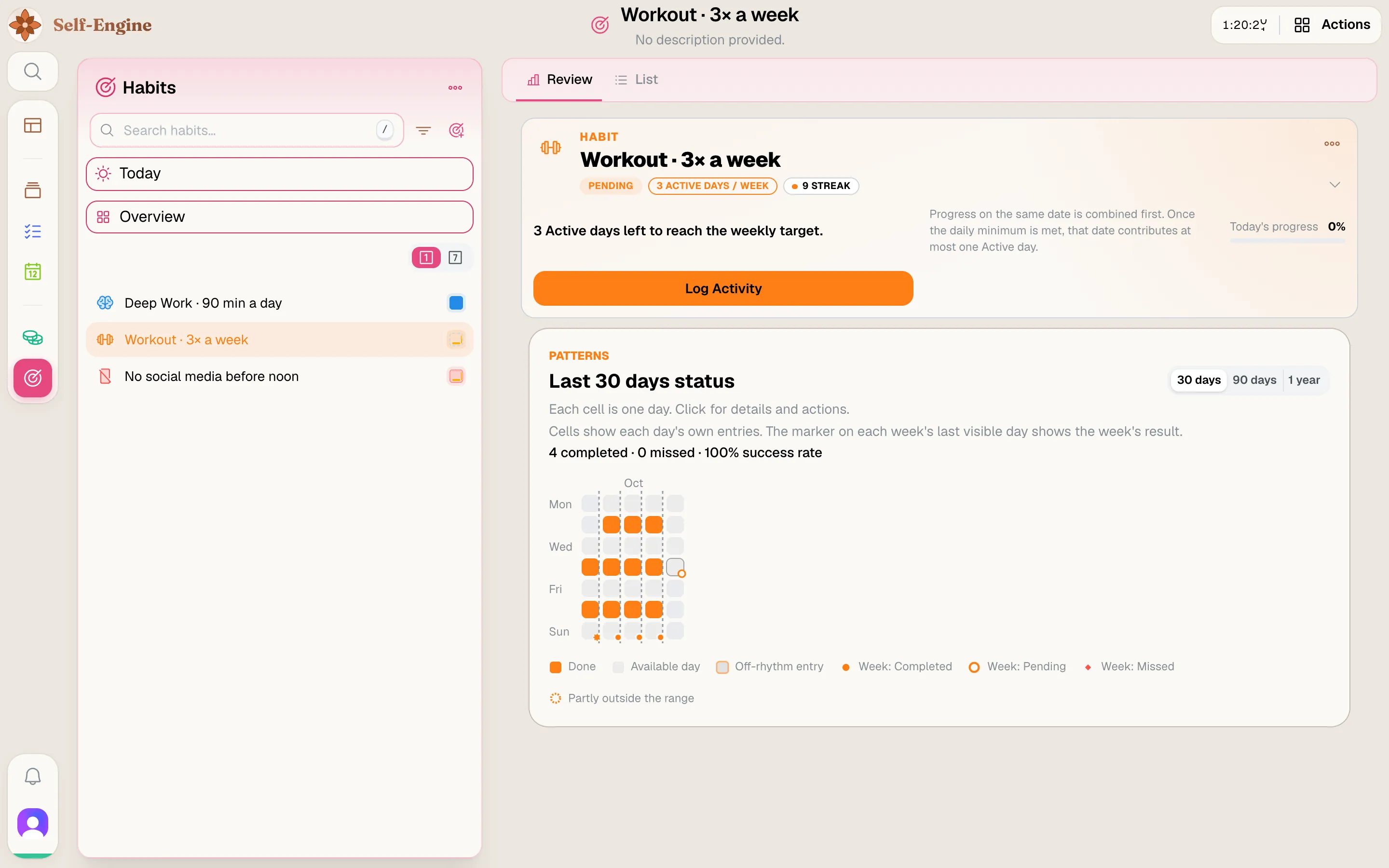
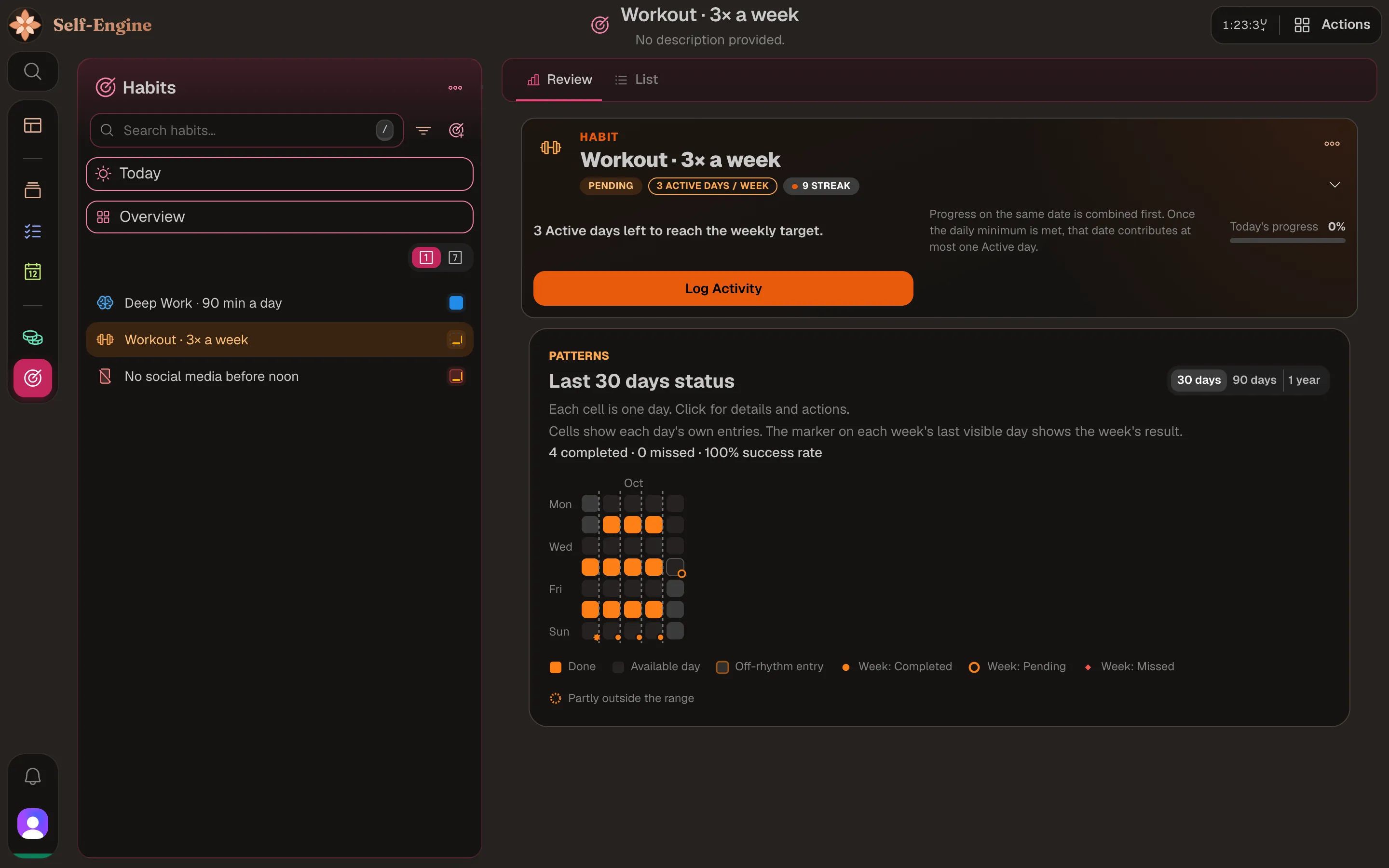
Tip For weekly or monthly habits an empty day is not a miss: the week or month is judged as a whole. Weeks or months cut short by the start, the end or a pause are shown but not scored.
Pause, archive and delete
Going on holiday or ill? Pause the habit instead of collecting misses.
Open the pause
Open the habit, click More actions and choose Pause now or Schedule pause.
Set start and end
Pick the first paused day. Then choose “Open-ended – until I resume” or “Resume on a date” with the date. The resume date itself is planned again.
Check the impact
“What changes in your history” shows which entries and outcomes the pause affects. Then confirm.
Resume or adjust
Under More actions, Resume ends a running pause. You can edit or remove a scheduled pause there until it starts.
- Pause now starts tomorrow by default, so today still counts. You can explicitly choose today instead.
- A pause ends the current streak without a miss. After you resume, a new streak starts; your best streak is kept.
- A pause can't be set in the past, and days that were already paused stay paused.
- Archive pauses a habit and hides it from your active lists; its history stays. Restore brings the same habit back on a date you choose. If its end date has passed, you set a new end or none.
Heads up Delete removes a habit permanently and warns you about existing entries. If you might want it back, archive it instead.
Count project time automatically
Link a habit to projects and the time you track there feeds the habit, without entering it twice.
Link a project
In the habit form under Project integrations, click Add project and choose a project. Several projects can contribute.
Track time
Track or log time in the linked project as usual.
See the progress
The habit shows the contributions as read-only automatic entries, together with the note of the time entry.
- Only habits you check off, count or measure in duration can be linked. Pages, currency amounts and custom units can't.
- Duration habits receive the booked minutes of each time entry. Habits you check off or count receive one activity per time entry. Each contribution counts on the start date of its time entry.
- While a duration habit is linked, its goal and counting settings are locked.
- Every saved time entry counts, not just Pomodoro sessions. A running timer counts once you stop and save it.
- To correct automatic progress, change the time entry in the project; the habit follows. You can add manual entries alongside.
Find and organize
- Search habits… in the sidebar finds habits by title.
- Filters & sort lets you filter by tags and sort by Manual, Title, Streak or Recently active. In manual order you arrange the habits yourself.
- List view switches between Today and 7 days. The 7 days are a rolling week up to today; click a cell to log or manage the entries of that day.
- Paused and archived habits have their own sections in the sidebar.
- Habits Guide in the sidebar opens a short help inside the app; Adjust habit settings leads to the settings.
On mobile
The mobile apps are still in development. Habits works there too, with a few differences:
- A week strip and swipeable days replace the Today view. The habit detail shows a month calendar with Streak, Best streak and the 30-day rate.
- Creating and editing offers templates and the same goal options. Tags and projects can only be selected there, not created.
- All entries shows the full history. Manual entries can be deleted; changing date, amount or note works in the web app.
Tips
- Start with one or two habits and choose the measurement that fits: total minutes when volume matters, active days when frequency matters.
- Log on the day it actually happened. Moving yesterday's progress to today doesn't fix a streak cleanly.
- Changing the goal, rhythm, counting or start date re-evaluates your past, not just the days from tomorrow on. “Progress will be re-evaluated” warns you before saving.
- Plan holidays with a pause instead of changing the rhythm.
- If a habit is linked to a project, don't log the same progress manually as well.